The fastest route to polished video is a browser-based editor that combines ready-made templates, built-in royalty-free assets, and one-click export presets. No installation. No waiting. You open a tab, pick a template, and start cutting.
Three reasons this approach wins for most creators:
- Speed. A 30-second social reel typically takes about 20–30 minutes from blank canvas to exported file.
- Cross-device access. Edit from a laptop, tablet, or phone without syncing files or buying a license per machine.
- Built-in assets. Templates, music, transitions, and text styles are already there, so you spend time on your message, not on hunting stock libraries.
A short explainer under two minutes takes under an hour, start to finish, if you know your script.
Table of Contents
- What does “accessible video content production” mean here?
- Who benefits, and what can you actually make?
- What features should you look for in a no-download editor?
- How do you produce a polished video online in six steps?
- What do free plans give you, and when should you upgrade?
- How do you edit smoothly without a powerful PC?
- How does Kudoflix meet the no-download editing brief?
- Your getting started checklist and three templates to try first
- Key Takeaways
- The case for browser editing over desktop software
- Kudoflix makes fast, polished video production genuinely simple
What does “accessible video content production” mean here?
For this guide, accessible means easy to reach and easy to use: no software to download, no steep learning curve, no $300 license before you’ve made a single clip. It describes no-download, browser-based production tools that let anyone open a browser and produce a finished video quickly.
What’s in scope: template-driven editing, auto-resize exports for multiple platforms, built-in audio libraries, and simple timeline trimming. What’s not: professional VFX pipelines, offline-only workflows, or multi-camera color grading suites. Those are powerful tools for a different job.
Who benefits, and what can you actually make?
Modern online editors now hit professional-quality output for social and marketing projects, and the audience is wider than most people assume.
- Coaches and freelancers — recording and packaging session clips or course previews (16:9, 3–10 min)
A family making one birthday video is a different user than a small business publishing three social clips a week. Both can work in a browser editor. The difference is whether you need a brand kit and batch export, which is where a paid plan earns its keep. See what Kudoflix covers by use case for a closer look at each scenario.
What features should you look for in a no-download editor?
Online editors emphasize cross-device access, AI-assisted features, and cost-effectiveness over traditional desktop tools. Here’s how to sort what matters from what’s optional.
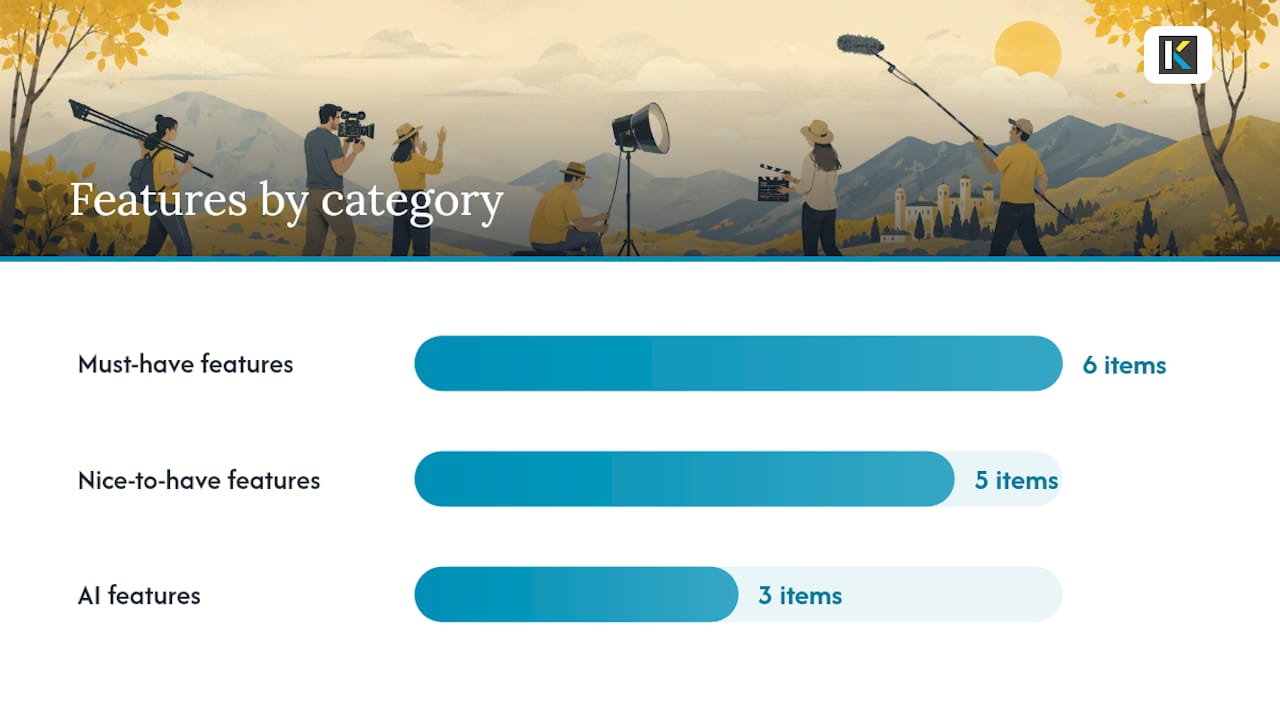
Must-have features
| Feature | Why it matters | Best for |
|---|---|---|
| Template library | Cuts setup time from hours to minutes | Everyone |
| Auto-resize / export presets | One timeline, multiple formats | Social creators, businesses |
| Built-in royalty-free audio | No licensing headaches | All users |
| Simple timeline trimming | Core editing without a manual | Beginners, educators |
| Auto-captioning | Faster than manual; boosts reach | Creators, coaches |
| Cloud autosave | No lost work on browser crash | Everyone |
Nice-to-have features
Brand kit, multi-track timeline, frame and keyframe controls, color filters, and direct social publishing. These matter once you’re producing content regularly or need consistent visual identity across clips.
AI features like auto-captioning, scene detection, and smart clipping are no longer premium extras. They speed up the most tedious parts of editing, especially for talking-head content and repurposed long-form recordings.
How do you produce a polished video online in six steps?
Browser-based editors speed time-to-first-cut and enable one-click format adaptation, making this workflow genuinely fast for short-form content.
Pro Tip: Keep a running notes doc with 10 video ideas. When you sit down to edit, you already know what you’re making.
Pro Tip: Trim to the tightest version first. You can always add B-roll back in, but you can’t get a viewer’s attention back once you’ve lost it.
-
Add B-roll, music, and text (5–10 min). Pull from the built-in audio library and overlay text or lower thirds. AI-driven tools can auto-generate short clips from longer recordings, cutting this step significantly for repurposed content.
-
Export and publish (2–5 min). Select your export preset, download or publish directly. For social creators, auto-resize lets you export one timeline to multiple formats without rebuilding the project.
Total time for a 30-second social clip is typically 20–30 minutes. A two-minute explainer takes under an hour.
What do free plans give you, and when should you upgrade?
Pricing shapes vary widely across solution types, so knowing what each tier actually unlocks saves you from upgrading too early or too late.
| Tier | Typical cost | What you get | Best for |
|---|---|---|---|
| Free / freemium | Free | Basic templates, watermarked exports, limited storage | Beginners, one-off projects |
| DIY software subscription | Subscription-based | Full template library, no watermark, export presets, brand kit | Regular creators, small businesses |
| Freelance editor (per project) | Project-based pricing | Done-for-you editing, custom assets | Businesses needing hands-off production |
| Agency / unlimited service | Subscription-based | High-volume, managed production | High-output teams |
Upgrade when you need watermark-free exports, higher resolution, a brand kit, or direct social publishing. Free tiers work fine for testing the workflow or producing occasional personal clips.
How do you edit smoothly without a powerful PC?
Start by optimizing your browser and media files before you open the editor.
Browser and connection basics: Use Chrome or Edge on a stable connection for smooth playback and upload. Close unused tabs. Browser editors depend on your internet speed more than your CPU.
File-size best practices: Compress footage to 1080p before uploading if your source files are 4K. Most browser editors don’t need raw 4K to produce a sharp social export, and smaller files upload and process faster.
Three quick fixes for common problems:
- Lag during playback: Lower the preview quality setting inside the editor. This doesn’t affect your export.
- Failed uploads: Check file format. MP4 (H.264) uploads reliably across every major browser editor. MOV and MKV sometimes need transcoding first.
- Export errors: Clear your browser cache, then re-export. If the error repeats, try a different browser.
How does Kudoflix meet the no-download editing brief?
Kudoflix maps directly to every step in the workflow above. Here’s how each feature connects:
- No download, no installation means the entire workflow runs in your browser on any device. Kudoflix runs on mobile phones and computers without platform-specific versions.
The full Kudoflix feature list covers additional capabilities including color filters, transitions, and the media library.
Your getting started checklist and three templates to try first
Getting started in five steps:
- Create your free Kudoflix account at kudoflix.com/online-video-editor
- Choose your aspect ratio (9:16 for social, 16:9 for presentations)
- Pick a starter template from the Kudoflix template library
- Swap in your footage, add music, and adjust text
- Run auto-captioning, review, then export
Three templates to try first:
- Social short (9:16, 15–30 sec) — fastest to finish, typically 20–30 minutes total. Great for product teasers or event announcements.
- Explainer clip (16:9, 60–90 sec) — ideal for educators and coaches. Budget under an hour including caption review.
- Presentation clip (16:9, 2–3 min) — works for business pitches or course intros. Allow under an hour.
After your first export, duplicate the project and use auto-resize to produce a square version for Instagram feed posts. Or save your edited version as a brand template so your next clip starts with your colors and fonts already in place.
Key Takeaways
A no-download browser editor with templates, built-in assets, and auto-captioning is the fastest way to produce polished video without installing software or hiring a specialist.
| Point | Details |
|---|---|
| Browser editing is genuinely fast | A 30-second social clip takes 20–30 minutes; a two-minute explainer under an hour. |
| Must-have features to prioritize | Templates, auto-resize exports, royalty-free audio, timeline trimming, and cloud autosave. |
| Free tiers have real limits | Watermarks and export caps are standard on free plans; upgrade for brand kit and full resolution. |
| Optimize before you edit | Use Chrome or Edge, compress footage to 1080p, and maintain a stable internet connection. |
| Kudoflix covers the full workflow | Templates, timeline, captions, effects, and export presets run entirely in-browser, no download needed. |
The case for browser editing over desktop software
Most creators reach for desktop software out of habit, not necessity. For short-form social content, internal communications, and quick marketing clips, a browser editor is faster and easier to share. Desktop software still leads for advanced VFX, complex color grading, and offline reliability.
| Dimension | Browser-based editors | Desktop editors |
|---|---|---|
| Setup time | Seconds (open a tab) | Minutes to hours (install, license) |
| Collaboration | Share by link, real-time | File transfer, version management |
| Cross-device | Any browser, any OS | Licensed machine only |
| Advanced effects | Limited | Full VFX and color grading |
| Offline use | Requires internet | Works offline |
The honest rule: if your output is under five minutes and destined for social or internal use, a browser editor handles it. If you’re grading a short film or building complex motion graphics, desktop software still has the edge. Most creators doing both keep a browser editor for speed and a desktop tool for the occasional heavy lift. That’s not a compromise. It’s just using the right tool for the job.
For creators curious about AI-driven editor features that further close the gap with desktop tools, the options have expanded considerably in the past two years.
Kudoflix makes fast, polished video production genuinely simple
If you’ve read this far, you already know what to look for. Kudoflix gives you the full no-download workflow in one place: an extensive template library, built-in effects and transitions, royalty-free music, auto-captioning, and export presets for every major format. No installation, no complicated interface, no wasted hour reading a manual before you make your first cut.
Start free, produce your first clip, and see how fast the workflow actually moves. When you’re ready for watermark-free exports, a brand kit, and higher-resolution output, upgrading is straightforward. Head to Kudoflix’s simple professional editing guide to start your first project now.
Recommended