

A slideshow with music is a video presentation that combines photos and an audio track into a single, shareable file. Knowing how do I create a slideshow with music is one of the most searched video questions online, and for good reason. Whether you are building a wedding recap, a classroom project, or a product highlight reel, the right combination of images and sound turns a flat photo collection into something people actually watch. Modern browser-based tools have made this process fast, legal, and accessible to anyone with a photo folder and a song in mind.
How do I create a slideshow with music: choosing the right tool
The tool you pick determines everything from your audio format options to how easily you can share the final video. Three broad categories cover most users’ needs.
Browser-based editors run entirely online with no software to install. They support drag-and-drop uploads, built-in transition libraries, and royalty-free music catalogs. Kudoflix falls into this category, offering a full slideshow editor with music integration directly in your browser.
Mobile apps work well for quick, phone-first projects. They typically offer fewer export options but are convenient for sharing directly to social platforms.

Desktop software gives the most control over audio mixing and export quality, but requires installation and a steeper learning curve.
The feature that matters most for music slideshows is built-in licensed music. Using copyrighted music on platforms like YouTube or Facebook can result in content ID blocks or video removal. Tools with royalty-free libraries built in remove that risk entirely.
Here is a quick comparison of tool categories by key features:
| Feature | Browser-based | Mobile app | Desktop software |
|---|---|---|---|
| No installation needed | Yes | Yes | No |
| Royalty-free music library | Often included | Sometimes | Sometimes |
| Export to MP4 | Yes | Yes | Yes |
| Crossfade audio | Advanced tools | Rare | Common |
| Ken Burns motion effect | Common | Rare | Common |
Two other features worth knowing before you choose a tool: the Ken Burns effect (a slow pan and zoom applied to still photos to create motion) and crossfade audio (a gradual overlap between two tracks so one fades out as the next fades in). Both are standard in quality editors and make a real difference in the final product.
How to prepare your photos and music before you start
Good preparation cuts your editing time in half and produces a better result. Start with your photos.
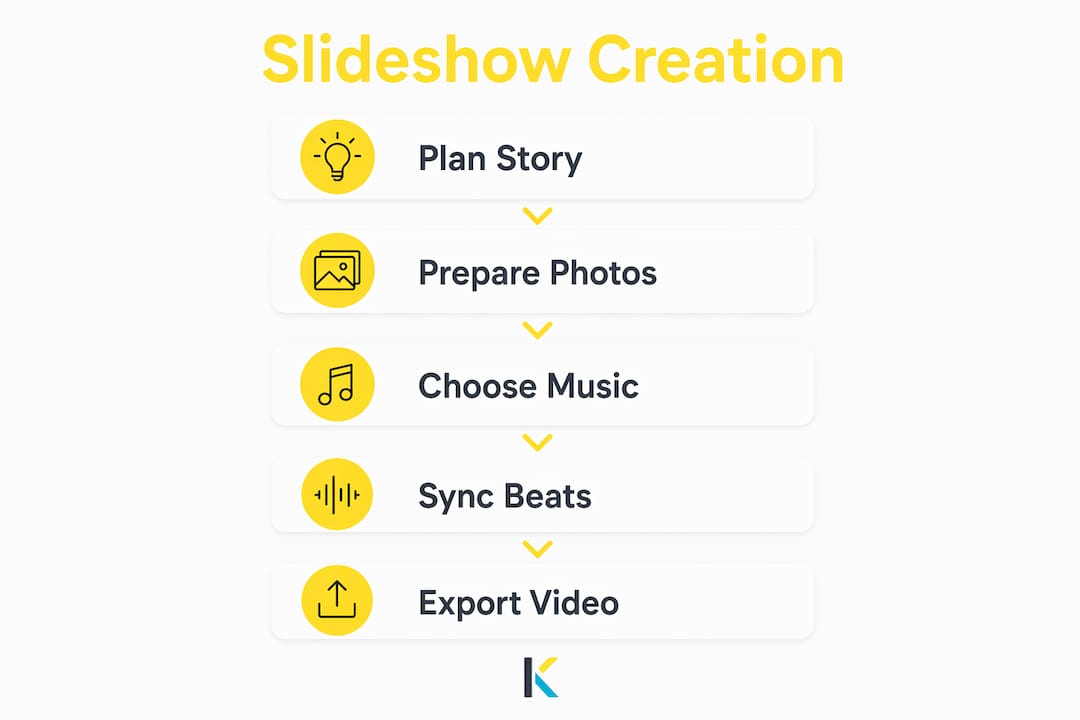
Experienced slideshow creators plan story structure before editing, focusing on narrative flow rather than volume of images. The practical rule: aim for around 40 well-chosen photos. That number holds viewer attention without overwhelming them. Organize your images into three groups: opening shots that set the scene, middle shots that carry the story, and closing shots that land the emotional finish.
For music, the format you upload matters. Supported audio formats across most 2026 slideshow tools include MP3, WAV, M4A, OGG, and FLAC. MP3 is the safest choice for compatibility. WAV gives the highest audio quality if file size is not a concern.
Before you upload any track, confirm its license. Royalty-free does not always mean free to use commercially. Check whether the license covers public sharing, monetized videos, or educational use specifically.
- Choose photos that tell a story, not just look good individually
- Limit your selection to roughly 40 images for strong pacing
- Use MP3 or WAV for the widest tool compatibility
- Confirm your music license covers your intended platform
- Match the mood of your music to the emotional tone of your photos
Pro Tip: Sync your total slide count to your music duration before you start editing. Divide the song length in seconds by the number of photos to get your target seconds per slide. A 3-minute song with 40 photos means roughly 4.5 seconds per image.
Step-by-step process to make a video slideshow with music
Follow these steps in order. Skipping ahead, especially on audio settings, is the most common reason slideshows feel unfinished.
-
Start a new project. Open your chosen tool and create a new slideshow project. Select the output aspect ratio before uploading anything. Widescreen 16:9 works for most screens; square 1:1 suits Instagram.
-
Upload your photos. Drag your selected images into the editor. Most browser-based tools let you create a polished slideshow in under 60 seconds using drag-and-drop methods. That speed comes from automated sequencing, which you can then adjust manually.
-
Arrange your sequence. Reorder images to match your story structure. Opening, middle, and closing groups should flow naturally. Most editors let you drag thumbnails to reorder.
-
Add your background music. Upload your audio file or select a track from the tool’s royalty-free library. Supported upload formats typically include MP3, WAV, and M4A, with volume and trimming controls to customize playback across slides.
-
Set looping and volume. If your music is shorter than your slideshow, enable the loop setting. Keep music volume at roughly 70–80% of maximum so it supports the visuals without overpowering them. For presentation tools like Google Slides, uncheck “Stop on slide change” and check “Loop audio” to keep music playing continuously.
-
Apply transitions. Add a consistent transition style between slides. Crossfade or dissolve transitions work best with music because they feel smooth rather than jarring. Avoid using more than two different transition styles in one slideshow.
-
Adjust slide timing. Match each slide’s display duration to your music. Some editors auto-fit slide duration to music length. Others require manual adjustment per slide.
-
Export your video. Export to MP4 for the widest compatibility. WebM works well for web embedding. Check your export resolution: 1080p is the standard for social sharing in 2026.
Pro Tip: If your tool offers a crossfade audio feature, use it between tracks. Crossfade audio allows multiple music tracks to transition smoothly, preventing abrupt cuts and preserving mood continuity throughout the slideshow.
Tips for syncing music and visuals to boost emotional impact
Music choice drives emotional connection more than any visual effect. Tracks with personal meaning enhance viewer connection more than generic upbeat songs. A wedding slideshow set to the couple’s first dance song hits differently than a stock track labeled “happy.”
Manual beat syncing is the technique professionals use most. Listen to your chosen track and identify the natural beats or phrase changes. Place your most impactful photos at those moments. The result feels intentional rather than accidental.
Audio crossfading is equally important for longer slideshows that use more than one track. Professionals use it to ensure mood continuity and smoother transitions between music segments. Set your crossfade duration between 2 and 5 seconds for a natural feel.
Do’s and don’ts for adding audio to your slideshow presentation:
- Do match music tempo to the pace of your story. Fast cuts suit upbeat tracks; slow dissolves suit ballads.
- Do trim your track to end cleanly rather than cutting off mid-phrase.
- Do use visual storytelling structure to guide your music selection, not the other way around.
- Don’t use music at full volume. Loud background music distracts from the photos.
- Don’t mix tracks with clashing tempos or genres in the same slideshow.
- Don’t ignore the ending. Fade your audio out in the final 3–5 seconds for a clean finish.
Pro Tip: If you cannot find a track that fits perfectly, look for instrumental versions of familiar songs. They carry emotional weight without lyrics competing for attention.
Key Takeaways
Creating a great slideshow with music requires three things: a clear story structure, legally licensed audio, and a tool that handles both without friction.
| Point | Details |
|---|---|
| Limit your photo count | Around 40 well-chosen images hold viewer attention better than large collections. |
| Use licensed music | Royalty-free libraries built into your tool prevent copyright blocks on social platforms. |
| Match audio formats | MP3, WAV, and M4A offer the widest compatibility across 2026 slideshow tools. |
| Apply crossfade audio | Smooth audio transitions between tracks prevent abrupt cuts and preserve mood. |
| Export to MP4 at 1080p | This format and resolution give the best results for social sharing and playback. |
What I have learned from making slideshows that actually move people
Most people approach a slideshow as a photo dump with a song playing in the background. That is the wrong frame entirely.
The slideshows that land emotionally are the ones where someone made a decision about every single image. Not “I like this photo,” but “this photo belongs here, at this moment in the story, because it shows the turn.” That level of intention is what separates a slideshow people watch once from one they save and rewatch.
Music selection is where I see the biggest gap between beginners and experienced creators. Beginners pick a song they like. Experienced creators pick a song that matches the emotional arc of the photos. Those are completely different decisions. A track that starts quietly and builds to a chorus is telling you exactly where to place your most powerful image.
The technical side matters less than most guides suggest. Crossfade audio, Ken Burns motion, and smooth transitions are all worth using. But they amplify a good story. They cannot rescue a weak one. Get the story right first, then layer in the effects.
One practical thing I always do: I watch the finished slideshow with the sound off before I export. If the photos still tell a clear story without music, the music will make it better. If the photos are confusing without sound, no track will fix that.
— Mandrixx
Kudoflix makes creating slideshows with music straightforward
Kudoflix is a browser-based video editor built for people who want professional results without a steep learning curve. No downloads, no installations, and no complicated menus standing between you and a finished slideshow.

The Kudoflix slideshow editor handles the full workflow: drag-and-drop photo uploads, built-in transitions, motion effects, and music integration in one place. You can upload your own MP3 or WAV file, set looping and volume, and export to MP4 in 1080p when you are done. For creators who want a head start, Kudoflix offers a library of free video templates designed for slideshows, family events, social media, and presentations. The editor runs entirely in your browser, so your first slideshow with music is closer than you think.
FAQ
How do I add music to a slideshow?
Upload an MP3, WAV, or M4A audio file in your slideshow editor, then set the volume and looping options. Most browser-based tools include a royalty-free music library if you do not have a track ready.
What audio formats work best for slideshows?
MP3 is the most compatible format across all major slideshow tools in 2026. WAV offers higher audio quality if file size is not a concern.
Can I use any song I want in my slideshow?
Using copyrighted music on platforms like YouTube or Facebook can result in content ID blocks or video removal. Use royalty-free or licensed tracks, ideally from a library built into your editing tool.
How many photos should a slideshow have?
Around 40 carefully chosen photos is the practical standard for holding viewer attention. More images dilute the story; fewer can feel incomplete.
What video format should I export my slideshow in?
MP4 at 1080p resolution is the standard for social sharing and general playback in 2026. WebM is a good alternative for web embedding.
Recommended