A progressive web app (PWA) is a website built to behave like an installed app: it works offline, loads fast, and lives on a home screen without an app-store download. The three things that make it possible are a Web App Manifest, a Service Worker, and HTTPS. Build one when you need a single codebase across devices, faster time-to-market than native, or better return-visit engagement than a standard site.
- Manifest tells the browser your app’s name, icons, and display mode
- Service worker handles caching, offline logic, and background tasks
- HTTPS is non-negotiable, since service workers refuse to register without it
- Tools like Lighthouse audit whether your build actually qualifies as a PWA
Key Takeaways
A PWA succeeds when its manifest, service worker, and caching strategy are treated as core architecture decisions, not afterthoughts bolted on before launch.
| Point | Details |
|---|---|
| Three required pieces | A Web App Manifest, a registered service worker, and HTTPS are non-negotiable for installability. |
| Caching strategy matters most | Choose cache-first, network-first, or stale-while-revalidate per asset type, and version cache names on every deploy. |
| Feature-detect advanced APIs | Push, background sync, and WebAuthn support varies by platform, so ship fallbacks rather than assuming universal availability. |
| Security extends past HTTPS | Protect service worker update integrity and set expiration policies on any cached personal data. |
| Choose PWA vs. native by feature need | Default to a PWA for reach and low maintenance; reserve native for deep hardware access or store-driven discovery. |
Table of Contents
- Why Progressive Enhancement Is the Whole Point of a PWA
- The Three Files That Turn a Website Into an App
- Which Modern Web APIs Can a PWA Actually Use?
- What Makes a PWA Installable?
- How Should You Handle Offline Behavior and Caching?
- What Business Impact Does a PWA Actually Deliver?
- What’s the Practical Checklist for Building and Shipping a PWA?
- How Do You Make a PWA Accessible to Every User?
- What Security Risks Go Beyond Just Adding HTTPS?
- How Do You Optimize a PWA’s Real-World Performance?
- How Should You Version and Roll Out PWA Updates?
- How Do You Build User Engagement Without Being Annoying?
- Should You Build a PWA or a Native App?
- Video Editing Without the Download: What a PWA Approach Looks Like in Practice
- What the PWA Conversation Usually Gets Backwards
- Sources
Why Progressive Enhancement Is the Whole Point of a PWA
“Progressive” isn’t marketing fluff. It means the app checks what the browser supports, uses it if available, and degrades gracefully if not. A user on an old browser still gets a working site. A user on a modern one gets push notifications, offline access, and an install prompt. Nothing breaks either way.
That model rests on three pillars, and web.dev’s framing has become the industry standard for describing them:
- Capable: the app can use modern web APIs, cameras, sensors, and storage that used to require native code.
- Reliable: it loads instantly and works offline or on flaky connections, thanks to the service worker’s caching layer.
- Installable: users can add it to their home screen or app drawer without visiting a store.
PWAs stopped being experimental years ago. The core APIs are stable, the tooling is mature, and every major browser engine supports the baseline feature set, per MDN’s own overview.
The Three Files That Turn a Website Into an App

Three components carry the entire weight of a PWA, and skipping any one of them means your app doesn’t qualify as installable.
The manifest.json file needs name, short_name, start_url, display (usually standalone), a theme_color, and an icon set, ideally 192px and 512px PNGs at minimum, plus a maskable icon for Android’s adaptive shapes.
The service worker is a JavaScript file that sits between your app and the network. Its lifecycle runs through install, activate, and fetch events. You register it from your main script with a single call to navigator.serviceWorker.register(), and the fetch handler is where you decide whether a request comes from cache, network, or both.
HTTPS is required because service workers can intercept and modify network traffic. Browsers won’t grant that power over an insecure connection. localhost is exempted for development, but every production deploy needs a valid TLS certificate.
- Manifest: linked via
<link rel="manifest">in your HTML head - Service worker: scoped to a directory, so registration path matters
- HTTPS: most hosts (Netlify, Vercel, Cloudflare Pages) issue certificates automatically
Pro Tip: Register your service worker only after the load event fires, not before. Registering too early can delay your page’s first paint on slower connections.
Which Modern Web APIs Can a PWA Actually Use?
Browser vendors have spent years closing the capability gap with native apps. What’s usable today, with caveats:
- Push notifications through the Push API and Notification API, widely supported on Android and desktop
- Background sync, which queues actions offline and replays them once connectivity returns
- WebAuthn for passwordless, biometric-backed logins
- Web Payment Request API for streamlined checkout flows
- WebAssembly, letting performance-heavy code (video processing, compression) run near-native speed in the browser
- Web Bluetooth and WebUSB, for hardware integrations, though support is inconsistent across browsers
iOS historically lagged on push notifications and background sync, though Apple’s WebKit support has expanded over recent releases. Platform support shifts often enough that you shouldn’t build a feature around a single browser’s current behavior. Feature-detect everything, and ship a fallback UI for anything not guaranteed.
What Makes a PWA Installable?
Browsers run a specific checklist before offering the install prompt, and missing one item silently disables it.
- A valid manifest with
name, icons,start_url, anddisplay: standaloneorfullscreen - A registered service worker, even a minimal one with a fetch handler
- The app served over HTTPS
- Chromium browsers additionally check for a manifest
idand engagement heuristics before firingbeforeinstallprompt
Don’t hijack that native prompt. Capture the beforeinstallprompt event, delay it, and surface your own install button once a user has shown real intent, after completing an action, not on page load. Track install counts against that button separately from organic browser prompts, since conflating them muddies your funnel data.
If you need store presence for discoverability, PWABuilder packages your existing codebase for the Microsoft Store and generates a Trusted Web Activity wrapper for the Google Play Store. Test store-installed behavior separately. It doesn’t always match the browser experience exactly.
How Should You Handle Offline Behavior and Caching?
Three caching patterns cover most real-world needs, and picking the wrong one is the single most common PWA bug.
- Cache-first: serve from cache immediately, fall back to network. Best for static assets like fonts, logos, and CSS that rarely change.
- Network-first: try the network, fall back to cache on failure. Best for content that must stay fresh, like a news feed or pricing page.
- Stale-while-revalidate: serve the cached version instantly while fetching an update in the background for next time. Best for dashboards and content where instant load matters more than absolute freshness.
The most common production incident is stale UI after a deploy: users keep loading an old cached version of your app because the service worker never updated. Practitioner guidance on this pattern points to versioned cache keys and atomic deploys, where the new content and new service worker ship together, as the fix.
Pro Tip: Name your cache with a version string (app-cache-v3), and delete old cache versions in the service worker’s activate event. Skipping this step is why “hard refresh to fix it” becomes a support ticket.
Before shipping, test airplane mode on a real device, simulate a slow 3G connection in DevTools, and confirm the app doesn’t just fail silently when offline.
What Business Impact Does a PWA Actually Deliver?
The metrics teams track most: session length, return visit rate, conversion rate, and install counts against a defined install button.
- Faster load times correlate with lower bounce rates, particularly on mobile connections
- Offline capability reduces the “no signal, no app” abandonment problem entirely
- A single codebase across desktop and mobile cuts engineering overhead versus maintaining separate native builds
- Home screen installs create a low-friction return path that a bookmarked tab doesn’t
Case data compiled by web.dev documents engagement gains across a range of PWA projects, though context matters: a case study from a media site doesn’t map cleanly onto an e-commerce checkout flow. Measure your own baseline before launch, then track the same KPIs for 60 to 90 days post-launch rather than trusting someone else’s numbers.
What’s the Practical Checklist for Building and Shipping a PWA?
Move through this order, and don’t skip steps to save time. Skipped steps are exactly where installability silently breaks.
- Design the UI with offline states in mind from day one, not as an afterthought
- Write the manifest with all required fields and icon sizes
- Build the service worker with an explicit caching strategy per asset type
- Feature-detect every advanced API before calling it
- Set a performance budget (bundle size, time to interactive) and enforce it in CI
- Run an installability audit before every release
- Publish, then monitor real-world install and engagement metrics
- Lighthouse (built into Chrome DevTools) audits performance, accessibility, and PWA criteria in one pass
- Chrome DevTools Application panel inspects manifest parsing, service worker status, and cache contents directly
- PWABuilder validates manifest completeness and handles store packaging
For deployment, roll out to a small percentage of users first if your platform supports it, and always version your service worker script alongside your content so browsers can’t serve a mismatched pair.
How Do You Make a PWA Accessible to Every User?
Accessibility isn’t a separate checklist bolted onto a PWA. It runs through the same components that make the app installable in the first place.
Start with semantic HTML. A service worker can cache the most beautifully marked-up page in the world, but if your buttons are <div> elements with click handlers, screen reader users get nothing. Use real <button>, <nav>, and <main> elements, and reserve ARIA attributes for the gaps native HTML can’t cover, not as a substitute for it.
Focus management matters more in a PWA than a traditional multi-page site because navigation often happens client-side without a full page reload. When a route changes, move focus to the new content and announce it with an aria-live region, or keyboard and screen reader users lose their place entirely.
Offline and error states need their own accessible markup too. A generic “You’re offline” toast that vanishes after two seconds fails anyone using assistive tech at a normal reading pace. Give offline banners a persistent, dismissible, and properly labeled state.
Color contrast deserves specific attention in the manifest’s theme_color and any custom install prompts you build. Run those custom UI elements through the same contrast checks (4.5:1 for normal text, per WCAG) you’d apply to the rest of the app. Test with a real screen reader (VoiceOver, NVDA, or TalkBack) on your installed PWA, not just the browser tab version, since standalone display mode sometimes strips context cues like the URL bar that sighted users rely on for orientation.
What Security Risks Go Beyond Just Adding HTTPS?
HTTPS handles transport security. It doesn’t handle everything else that can go wrong once your service worker has that much control over network traffic.
A malicious or buggy service worker update is the scenario worth designing against first. Because the service worker can intercept every fetch request, a compromised update script could silently serve altered content or exfiltrate form data. Keep your service worker’s scope as narrow as possible, and audit any third-party script that runs inside it with the same scrutiny you’d apply to a payment integration.
Service worker update integrity matters just as much as the initial install. Browsers check for a new service worker script periodically, but if your deployment pipeline pushes a broken or unauthorized script, every returning user picks it up automatically. Sign your build artifacts, restrict who can push to your production origin, and treat your service worker file with the same access controls as your backend deploy keys.
Cached data is a second exposure point people overlook. If your cache-first strategy stores API responses containing personal data, that data sits in the browser’s Cache Storage indefinitely unless you explicitly expire it. Never cache authenticated or sensitive responses without a clear expiration policy, and clear user-specific caches on logout.
Content Security Policy headers, subresource integrity checks on third-party scripts, and strict manifest scope boundaries round out the practical baseline. None of it replaces HTTPS. All of it assumes HTTPS is just the entry fee.
How Do You Optimize a PWA’s Real-World Performance?
Performance optimization for a PWA starts with the same fundamentals as any website, then adds a layer specific to the service worker and caching model.
Bundle size still drives your time-to-interactive more than almost anything else. Code-split by route, lazy-load anything not needed for first paint, and use WebAssembly only for genuinely compute-heavy work, since the compile step itself has a cost on first load.
The service worker’s precache list is where a lot of PWAs quietly bloat. Precaching every asset in your app “just in case” defeats the purpose. Precache only the app shell, the assets needed to render a usable interface, and let everything else load on demand through your fetch handler’s runtime caching.
Image and video assets deserve their own strategy. Serve responsive images sized to the viewport, and lazy-load anything below the fold. For video-heavy PWAs specifically, streaming rather than full-file caching keeps storage quotas from becoming a problem on lower-end devices, an issue anyone building tools for cross-device video workflows runs into quickly.
Lighthouse’s performance score isn’t a vanity number. It maps to Core Web Vitals: Largest Contentful Paint, Cumulative Layout Shift, and Interaction to Next Paint. Set a performance budget (a maximum bundle size, a target time-to-interactive) and fail your CI build if a pull request blows past it. Catching a regression in code review costs you five minutes. Catching it after users notice costs you a support queue.
How Should You Version and Roll Out PWA Updates?
Updating a PWA safely means solving a problem native apps don’t have: your users never explicitly “update.” The new version just needs to take over cleanly, without breaking whatever tab they already have open.
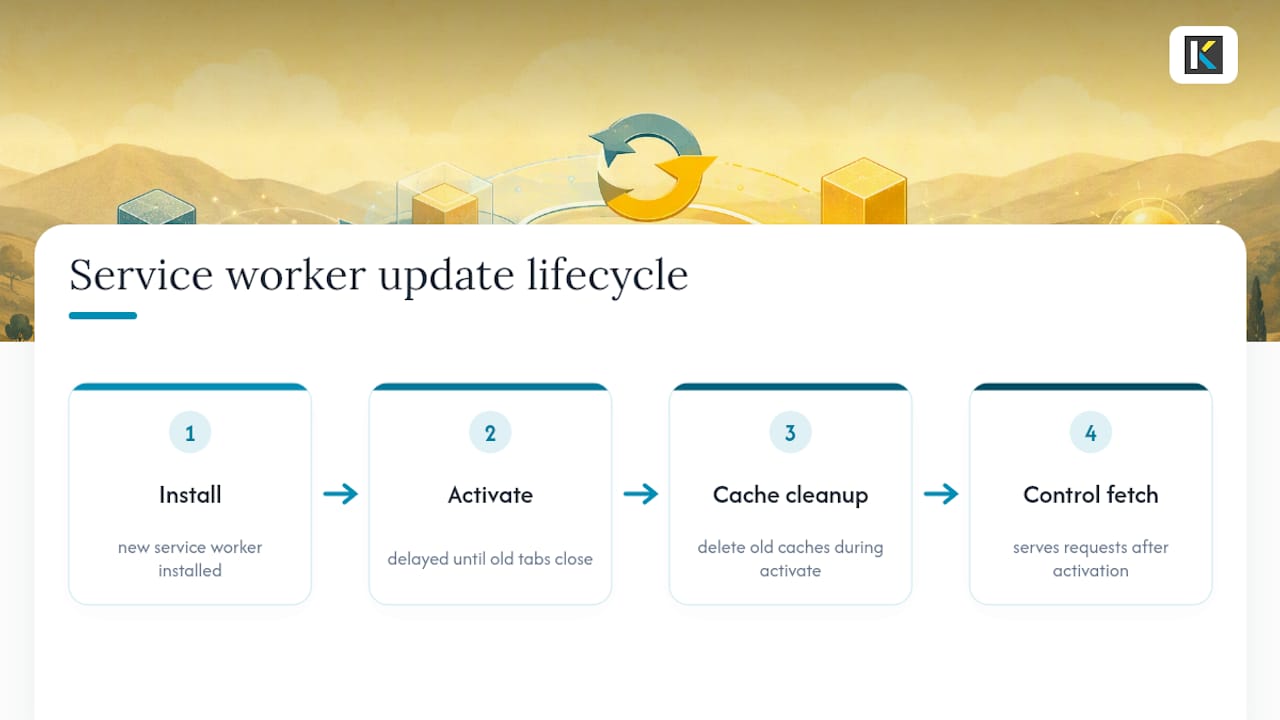
The service worker lifecycle handles this through its install and activate events, but the default browser behavior deliberately delays activation until all open tabs of the old version close. That’s a safety feature, not a bug, though it means a naive deploy can leave users on stale code for a session or two. Call skipWaiting() in your service worker and clients.claim() on activation if you need updates to apply immediately, but test this carefully since it can interrupt an in-progress user action.
Version your cache names explicitly (app-shell-v12, not just app-shell), and delete old cache versions during the activate event. This is the single most effective habit against the “stale UI after deploy” problem covered earlier in caching strategy. Pair it with atomic deploys, where your new content and new service worker script go live in the same release, never staggered.
For anything beyond a minor patch, consider prompting users with a simple “A new version is available, refresh to update” banner rather than forcing a silent reload mid-session. Phased rollouts, where a new service worker version reaches a percentage of users first, catch integration bugs before they hit everyone at once.
How Do You Build User Engagement Without Being Annoying?
Push notifications and install prompts are the two most powerful engagement tools a PWA has, and also the two easiest to misuse into an uninstall.
Never trigger a push notification permission request on page load. Request it after a user takes an action that implies genuine interest, saving an item, finishing a task, opting into a specific feature, so the prompt has context instead of ambushing a first-time visitor. The same logic applies to your custom install button: surface it after value has been demonstrated, not before.
Segment your notification strategy the way you would email: transactional pushes (order updates, direct replies) versus re-engagement pushes (a comeback nudge after inactivity) behave differently and need different frequency caps. A user who mutes your notifications once because you sent three in one day rarely turns them back on.
Home screen prompts benefit from timing tied to usage depth rather than a fixed visit count. A user who’s completed a core workflow twice is a far better install candidate than one who’s opened five random pages. Track your custom prompt’s acceptance rate as its own funnel metric, separate from the browser’s native beforeinstallprompt numbers, since conflating the two hides which one is actually working.
Should You Build a PWA or a Native App?
The honest answer depends on what the app needs to do, not on which technology sounds more modern.
A PWA wins on reach and maintenance cost: one codebase, no app-store review delays, instant updates without a user-initiated download, and full discoverability through search engines the way an app-store listing never gets. It’s the stronger default for content sites, e-commerce, internal tools, and most consumer apps that don’t need deep hardware access.
Native still wins when an app needs the absolute deepest hardware integration, complex offline-first data sync at scale, or the kind of frame-perfect performance that high-end gaming demands. It also wins when app-store presence itself is the discovery channel your users expect, which varies heavily by category and audience.
Hybrid frameworks (React Native, Flutter) sit in between: closer to native performance than a PWA, but still a single codebase across platforms, at the cost of a heavier build and store-review dependency a PWA never has. Microsoft’s own framing treats PWAs as a genuine bridge between reach and capability, not a compromise, and for most product decisions in 2026, that framing holds. The question worth asking isn’t “PWA or native,” it’s “does this specific feature actually require what only native can provide.”
Video Editing Without the Download: What a PWA Approach Looks Like in Practice
Video editing is one of the clearest real-world tests of the PWA model, since it demands real processing power without a native install. Kudoflix runs entirely in the browser: no download, no installation wait, and an interface built to load fast and stay reliable across devices, the same “capable, reliable” standard that defines a well-built PWA.
That’s the practical case for the model beyond the spec sheet: users open a link and get a working editor immediately, with a library of templates, transitions, and effects available the moment the page loads. Whether you’re evaluating the PWA approach for your own product or just want to see it applied to something more demanding than a static content site, exploring what a web-native editor can do is a fast way to see the tradeoffs in action rather than in theory.
What the PWA Conversation Usually Gets Backwards
Most PWA content ranks features against native apps as if it’s a permanent competition with a winner. That framing misses the actual decision developers face: PWAs closed the capability gap years ago on almost everything except the deepest hardware integrations, so the real question isn’t “can a PWA do this,” it’s “does this specific feature justify native’s overhead.”
The conventional advice oversells the manifest and service worker as the hard part. They’re not. Getting cache invalidation right after every deploy is where teams actually lose time, and it’s the part tutorials skip because it’s unglamorous. If you take one thing from this primer, prioritize your caching and versioning strategy before you touch push notifications or fancy Web APIs. A PWA that installs beautifully but serves stale content after every deploy will lose user trust faster than one that simply lacks a install prompt.
The other overlooked point: accessibility and security in a PWA aren’t add-ons you bolt on before launch. They’re structural, tied to the same manifest and service worker decisions you make on day one. Build them in from the first commit, and the rest of the checklist gets easier, not harder.
— Mandrixx
Sources
Three sources cover nearly everything you’ll need day to day. web.dev’s PWA collection is the strongest for business-case framing and audits. MDN’s PWA documentation is the deepest technical reference for manifest and service worker APIs. Microsoft Learn’s PWA overview covers cross-device packaging and Windows-specific behavior.
Worth noting for context: Kudoflix runs entirely as a web-native video editor with no download or install step required, a working example of the same “capable, reliable” philosophy PWAs are built around, applied to a full editing workflow instead of a simple content site.
- Web
Recommended