The fastest path to a glitch effect video is a three-part combo: drop a glitch overlay on your clip, set it to Screen or Overlay blend mode, then layer in a synced glitch sound effect. You can build the whole thing in a browser editor or a mobile app with free assets, no software install required. The workflow takes minutes once you know which overlay type and blend mode to grab.
TL;DR:
- Using a screen or overlay blend mode with black-background overlays creates a convincing glitch effect without complex masking.
- Looping or crossfading short glitch clips helps extend the effect without seams or visible jumps.
- Synchronizing glitch sound effects with scene changes enhances the visual impact and makes the glitch feel intentional.
- Subtle opacity adjustments and masking overlays prevent visual noise and keep the glitch from overwhelming captions or important footage.
- Employing a browser-based editor and free assets allows quick, high-quality edits without installing software or waiting on renders.
Table of Contents
- What You Need to Build a Digital Glitch Effect
- How Do You Apply a Glitch Overlay Step by Step?
- How Do You Sync Glitch Sound Effects With the Visuals?
- Blend Modes, Alpha Overlays, and Looping Without Seams
- Using Glitch Templates and Presets Without Looking Templated
- Where Can You Find Free Glitch Overlays and Generators?
- Why Does Overusing Glitch Effects Ruin the Video?
- Why Kudoflix Fits This Exact Workflow
- A Working Editor’s Take on Glitch Effects
- Try the No-Download Route for Your Next Glitch Edit
- Sources
What You Need to Build a Digital Glitch Effect
You don’t need a compositing suite to pull off a convincing digital glitch effect. Three categories of free tools cover almost every version of the look creators chase right now.
Glitch overlays are short video clips (usually black background, sometimes alpha channel) showing static, RGB splits, or scan lines. Overlay packs bundle several of these together so you can mix and match. Browser-based glitch generators, like Studio·ity’s Glitch & VHS Effect Generator, let you stack distortion controls such as RGB channel split, slice displacement, and VHS artifacts, then animate and export the result directly. Preset filters inside drag-and-drop editors apply a baked-in glitch look with one click. SFX libraries round out the kit with the audio half of the effect.
Before you commit to any asset, run it through a quick checklist:
- Alpha or black background? Alpha exports blend cleanly without extra masking; black-background clips need a Screen or Overlay blend mode.
- Does it loop cleanly? Watch the first and last frame back to back. A visible jump means you’ll need to trim or crossfade.
- What format does it export? MP4 with H.264 is the safest bet for compatibility across editors and social platforms.
- What’s the license? Confirm royalty-free use before publishing, even on free downloads.
Matching overlay type to footage matters more than most tutorials mention. Dark, moody scenes hide black-background overlays almost perfectly under a Screen blend, while bright daylight footage often needs an alpha overlay with reduced opacity, or the glitch reads as a smudge instead of an effect.
How Do You Apply a Glitch Overlay Step by Step?
Once you have your clip and an overlay picked out, the actual application process is short and repeatable across almost any editor.
- Import your clip and trim it. Isolate the exact segment where you want the glitch to hit, whether that’s a beat drop, a scene transition, or a punchline.
- Place the overlay on a track above your footage. Most editors default to a simple layer stack, so this is usually a drag-and-drop move.
- Set the blend mode to Screen or Overlay. Screen strips out black backgrounds and keeps only the bright glitch elements, which is faster than manual chroma keying for this kind of asset. Lower the opacity if the effect feels too aggressive.
- Animate the intensity. Use keyframes to ramp the glitch up and down, or use randomized slice offsets so the distortion feels different in each shot rather than repeating the same pattern.
- Loop or stagger overlays for longer glitches. A three-second overlay clip can cover ten seconds of footage if you loop it or crossfade the seams, or you can stagger two or three different overlay clips back to back for variation.
- Export as H.264 MP4. This format holds up across Instagram, TikTok, and YouTube Shorts without re-encoding surprises.
Pro Tip: Randomize your slice or displacement parameters per shot instead of reusing the same keyframe pattern across a whole edit. Repetitive glitch timing is the fastest way to make an otherwise sharp effect look like a filter someone applied and forgot about.
How Do You Sync Glitch Sound Effects With the Visuals?
A glitch that looks right but sounds silent falls flat. Synchronized sound is a core part of the aesthetic, and libraries like Lens Distortions’ glitch SFX collection exist specifically because audio pulls viewer attention in a way visuals alone don’t.
Stick to two or three sound categories: short static bursts, bit-crushed hits, and quick digital chirps or stutters. Layer them with intention rather than dropping one loud effect over everything.
- Place a short, sharp hit exactly on hard cuts or scene changes.
- Run a continuous, low-level static or hum underneath the entire glitch segment for texture.
- Add quick fades in and out on every hit to avoid audible pops.
- Nudge audio hits two or three frames earlier than the visual slice. That tiny offset makes the glitch feel punchier because sound reaches perception slightly faster than a matching visual cue.
Blend Modes, Alpha Overlays, and Looping Without Seams
Blend mode choice makes or breaks how natural a glitch overlay looks against your footage. Screen mode removes black entirely, which is why it’s the standard pick for black-background overlay clips. Overlay and Add modes boost highlights and contrast, useful for punchier RGB-split effects, while Multiply rarely shows up in glitch work since it darkens rather than distorts.
Alpha overlays skip the blend-mode question altogether since transparency is already built into the file, but black-background clips paired with Screen blend mode are more common in free asset packs and work just as well once you know the setting.
- Use Screen for black-background clips; skip chroma keying entirely.
- Use alpha overlays when you need precise, subject-masked distortion.
- Crossfade the loop point on short clips, or use a mirrored loop, to hide the seam where the clip restarts.
- Align glitch bursts to the beat if your clip has music, so the distortion reads as intentional rather than random.
Pro Tip: If a loop still shows a visible jump after crossfading, reverse a duplicate of the clip and stitch it to the end. The mirrored motion almost always disguises the seam better than a straight crossfade.
Using Glitch Templates and Presets Without Looking Templated
A glitch template usually bundles five parts: the overlay clip itself, a color-split layer, a scanline layer, a synced audio hit, and preset transition timing. That structure is exactly why templates save time, but it’s also why two videos using the same template can look identical if you don’t touch anything.
Tweak at least three variables before you export:
- Shift the timing offset so the glitch doesn’t land on the same beat every editor defaults to.
- Adjust the color tint, warmer or cooler, to match your footage’s existing palette.
- Change overlay opacity and scanline intensity so the effect reads as custom rather than copy-pasted.
- Adjust export bitrate to match your platform’s compression, especially if the original preset was built for a different resolution.
Once you land on a combination that works, save it as your own preset. Reapplying a tuned template across a batch of clips is far faster than rebuilding the look from scratch every time.
Where Can You Find Free Glitch Overlays and Generators?
Free stock sites are still the best starting point for raw footage. Pexels’ glitch effect video collection hosts a large library of glitch-tagged clips suitable for overlay work, and searching terms like “static overlay,” “VHS glitch,” or “digital distortion” narrows results fast.
Browser generators fill the gap when stock footage doesn’t match your exact look. Tools like ASCII Magic’s glitch generator produce alpha or black-background exports built specifically for blending, though free tiers commonly cap resolution or clip length, so test loopability before building an entire edit around one export.
- Search stock sites for “glitch,” “static overlay,” or “VHS” and filter results by resolution and clip length.
- Confirm whether a browser export includes alpha transparency or needs a Screen blend.
- Check the license terms on every download, even from free generators, before posting commercially.
- Favor MP4 or looping GIF formats over image sequences unless your editor specifically supports frame-by-frame import.
Why Does Overusing Glitch Effects Ruin the Video?
The most common failure isn’t a bad overlay. It’s too much of a good one. Editors widely agree that subtle enhancement beats a heavy-handed filter almost every time, and glitch effects are especially easy to overdo because they’re fun to crank up.
Washed-out color usually means your overlay opacity is too high or you stacked two overlays that fight each other. Noisy exports often trace back to compressing an already-grainy overlay twice. Text becomes unreadable fast once a glitch overlay sits directly on top of it, so mask the overlay away from any caption or title layer.
- Lower opacity first before reaching for a different overlay entirely.
- Mask overlays to the subject rather than covering the full frame.
- Add light film grain instead of a second heavy filter for texture without visual noise.
- Export with H.264 MP4 at a bitrate suited to your platform, and treat looping GIFs as a separate, shorter export rather than a full-length substitute.
Pro Tip: If a glitch looks great in your editor’s preview but turns muddy after export, the bitrate is almost always the culprit. A bitrate calculator can help you pick a setting that keeps fine detail like scan lines intact instead of compressing them into mush.
Why Kudoflix Fits This Exact Workflow
Every step covered above, overlay placement, blend modes, synced SFX, looping, exporting, maps directly onto what Kudoflix’s effects and transitions library already offers inside the browser. There’s no install, no render wait on a local machine, just a timeline and the assets you need.
- Browser-based glitch templates and overlays are ready to drag onto your timeline immediately.
- Royalty-free SFX libraries sit alongside the visual assets, so syncing audio to a glitch hit doesn’t require switching tools.
- Fast processing means you can preview a blend mode change or opacity tweak without waiting on a render queue.
- Free stock footage and overlay clips are available directly inside the platform for readers who want to start from existing free assets rather than hunting across multiple sites.
A Working Editor’s Take on Glitch Effects
Glitch effects work best as punctuation, not decoration. Use them on a beat drop, a reveal, or a hard cut, not across an entire video. My personal checklist stays short: pick the clip that needs emphasis, grab one overlay that matches its lighting, sync a single SFX hit to the cut, then export before the temptation to add a second effect kicks in. That restraint is what separates a sharp edit from one that looks like a filter demo.
— Mandrixx
Try the No-Download Route for Your Next Glitch Edit
Skip the render times and plugin hunts. Kudoflix runs the entire glitch workflow, overlays, blend modes, SFX, export, right in your browser, so a clip you start editing on a lunch break can be posted before it ends. It’s built for creators who want the look without learning a new interface every time a trend shifts.
The template library gives you a glitch starting point you can tweak in minutes, and the royalty-free SFX collection means you’re not hunting a separate site for the audio half of the effect. If you’ve been putting off a glitch-style edit because desktop software felt like too much setup for a fifteen-second clip, this removes that excuse entirely.
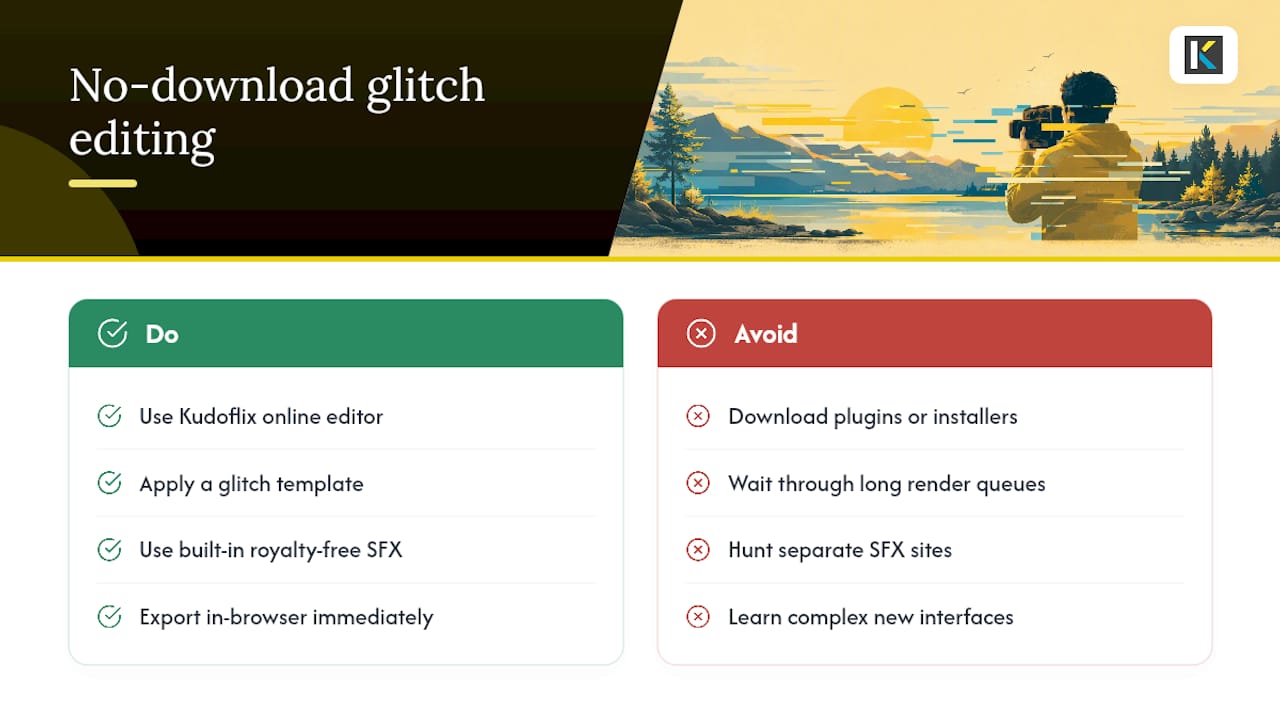
Open the Kudoflix online video editor and try applying a glitch template to your next clip, no download, no install, no waiting on an export queue longer than the video itself.
Sources
Recommended