If YouTube keeps flagging your audio, stop searching “no copyright music” and start pulling tracks from the YouTube Audio Library or licensing them directly through Creator Music, since both are pre-cleared against Content ID. If a video is already live with a flagged track, swap in a platform-cleared replacement immediately and save the license receipt. For creators who want this baked into their workflow instead of managed manually, an editor with a built-in royalty-cleared library removes the guesswork entirely.
TL;DR:
- Using YouTube’s Audio Library or Creator Music with proper licensing prevents Content ID claims and offers clear documentation during disputes.
- Claims are automated fingerprint matches that mute or restrict videos, while strikes are manual takedowns that threaten channel suspension if accumulated.
- Always verify license terms by downloading directly from official sources, copying attribution exactly, and testing uploads as unlisted before going public.
- Paid licensing services require activation steps like channel safelisting and should provide proof of license activation for effective claim protection.
- Maintaining organized, detailed license documentation and testing every track significantly reduces the risk of delayed claim resolution or channel issues.
Table of Contents
- Why YouTube Flags Tracks: Content ID, Re-Uploads, and Claims vs. Strikes
- Platform-First Safe Options: What YouTube Audio Library and Creator Music Actually Protect
- Safe Free Alternatives Beyond the Audio Library: Categories, Sites, and a Step-by-Step Checklist
- Paid Libraries and Services: Channel Safelisting, License Activation, and What to Confirm Before You Buy
- Cross-Platform and Creative Alternatives: AI Instrumentals, Public-Domain Catalogs, and Commissioned Music
- If You Already Have a Claim: Step-By-Step Verification and Dispute Checklist
- Contesting a Copyright Strike That Went Beyond a Simple Claim
- How a Copyright Claim Actually Affects Your Channel and Monetization
- Keeping License Documentation Organized for Fast Claim Resolution
- What Repeated Rejections Taught Me About Prevention Over Disputes
- Try Kudoflix for Editing With Cleared Music Built In
- Where to Verify These Rules Yourself
- Sources
Why YouTube Flags Tracks: Content ID, Re-Uploads, and Claims vs. Strikes
A Content ID claim isn’t a human reviewing your video. It’s an automated system scanning your audio track against a database of registered fingerprints, and it works fast, often flagging a match within minutes of upload. That speed is exactly why so many creators get blindsided: the track sounded free, the channel called it “no copyright,” but the fingerprint underneath told a different story.
Here’s the distinction that trips up most creators: a claim and a strike are not the same thing, and confusing them leads to bad decisions.
- A Content ID claim is automated. It typically mutes your audio, redirects monetization to the rights holder, or restricts the video in some regions. Your channel stays intact.
- A copyright strike is manual. A rights holder files a formal legal takedown request, and enough strikes can suspend your channel entirely.
- Claims are common and usually recoverable. Strikes are rare for typical background music use, but far more serious when they happen.
Most rejections creators experience fall into the claim category, not the strike category, which is good news. But the causes behind those claims are worth understanding, because they repeat constantly:
Re-uploads of licensed music. Someone downloads a licensed track, slaps a “copyright free” title on it, and re-uploads it to their own channel. Content ID still matches the original registration, so anyone who grabs that track gets flagged too. Guides tracking this pattern note it’s one of the most common sources of false confidence among new creators.
Aggregate catalog registrations. Some production music libraries bundle thousands of tracks under a single distributor account that registers fingerprints in bulk. A track might be legitimately free to use, but if the distributor’s catalog registration wasn’t updated to reflect that, Content ID still flags it.
Missing channel safelisting. Plenty of paid and even some free libraries require an activation step, like linking your channel or pasting a license URL, before the protection actually applies. Skip that step, and the license exists on paper but does nothing for your video.
None of this means the system is broken. It means “royalty-free” and “Content ID-safe” are two different claims, and only one of them actually matters when you hit publish.
Platform-First Safe Options: What YouTube Audio Library and Creator Music Actually Protect
Start with what YouTube itself guarantees before touching a third-party site. YouTube states plainly that music and sound effects downloaded from the Audio Library won’t be claimed by a rights holder through Content ID. That’s a direct commitment from the platform doing the scanning, not a marketing claim from a music site hoping its catalog is clean.
The Audio Library lives inside YouTube Studio, and it splits tracks into two categories worth knowing:
- Attribution-free tracks, which you can use with zero credit required, monetize freely, and never worry about a description-box requirement.
- Creative Commons tracks, which require you to copy specific attribution text into your video description, usually the artist name and a link back to the original.
Skipping that attribution step on a CC track doesn’t trigger Content ID, but it can violate the license terms and create a separate legal exposure if the artist notices. Copy the text exactly as YouTube provides it. Don’t paraphrase it.
Creator Music takes this further by acting as a licensing marketplace layered on top of YouTube’s own platform. Instead of a fixed library of stock tracks, it gives creators access to commercially released music, some available at no cost, some through revenue sharing where the rights holder takes a cut of ad revenue on that video instead of charging upfront. TechCrunch covered the launch as YouTube’s attempt to give creators legitimate access to popular music without navigating outside licensing deals.
There’s a change worth flagging if you’re planning ahead: YouTube has documented a shift in how Creator Music handles paid licenses, with the platform moving toward emphasizing no-cost and revenue-sharing tracks. Creators have until August 10, 2026 to purchase paid licenses under the current structure. If you’re relying on a paid Creator Music track for a long-term project, check the current terms before you build a series around it.
Why prefer YouTube’s own sources over a random third-party library? Two reasons. First, speed: there’s no verification lag between downloading a track and knowing it’s protected, because the protection is native to the platform. Second, clarity: when a claim does slip through on an Audio Library track (rare, but not impossible due to database errors), you have a direct, documented statement from YouTube itself to point to in a dispute. Third-party libraries can’t offer that same weight of proof.
Pro Tip: Filter the Audio Library by “attribution not required” first. It cuts your search time roughly in half and removes any chance you forget the credit line before publishing.
Safe Free Alternatives Beyond the Audio Library: Categories, Sites, and a Step-by-Step Checklist
Not every video needs a track from YouTube’s own catalog, and plenty of creators want a bigger pool of options for mood, genre, or sound design. The key is knowing which category of free source you’re pulling from, because each carries a different risk profile.
Platform-provided libraries sit at the safest end. This is the YouTube Audio Library itself, plus similar built-in libraries offered by editing tools.
Public domain and CC0 sources come next. These are works where copyright has expired or the creator explicitly released all rights, meaning no attribution and no restriction. Musopen is a well-known example for classical recordings, though even here, provenance matters: a recording of a public-domain composition can still carry its own separate copyright if a specific performance or arrangement was registered.
Curated free libraries round out the list. Sites like Pixabay Music, Free Music Archive, and Mixkit host large catalogs under varying license terms. Free Music Archive specifically hosts tracks with mixed Creative Commons licenses, which means the license on one track tells you nothing about the license on the next. You check per track, every time, no exceptions.
Here’s the exact workflow to run through before you publish anything from a free source:
- Download directly from the official source, never from a re-upload on a random channel or forum link. Re-uploads are the single biggest reason “free” music still triggers claims.
- Read the specific license attached to that track, not the site’s general policy. A catalog can host CC0 tracks next to attribution-required tracks in the same genre folder.
- Copy the attribution text verbatim if required, and paste it into your video description before you publish, not after.
- Upload the video as unlisted first and check the Content ID panel in YouTube Studio. If it stays clear for a reasonable window, you’re clear to make it public.
- Save a screenshot of the license page and your download confirmation in a dedicated folder before you move on to editing. You want this ready before a claim happens, not scrambled together after.
That unlisted test step matters more than most creators realize. Running a quiet check before going public catches problems while they’re still invisible to your audience and your monetization numbers.
Pro Tip: Name your license screenshots by video title, not by date. When a claim lands eight months later on a video you barely remember editing, you’ll thank yourself for a filename you can actually search.
Paid Libraries and Services: Channel Safelisting, License Activation, and What to Confirm Before You Buy
Paid music libraries earn their subscription fee by reducing recurring risk, not by offering better-sounding tracks. The difference between a paid license that protects you and one that doesn’t usually comes down to a single step most creators skip: activation.
Some curated services, including Thematic, require you to either paste a license link into your video description or complete a channel whitelisting process before the protection actually kicks in. Buy the license and stop there, and you own a piece of paper with no functional effect on Content ID. The track still gets flagged, and now you’re disputing a claim while holding a license that technically covers you but was never activated against your channel.
Before you subscribe to any paid library, confirm these three things:
- Does the service require channel linking or safelisting, and is that process something you complete once per channel or per track?
- Does your purchase confirmation include a license record you can produce on demand, ideally a PDF or a permanent link, not just an email receipt that expires?
- Does the service publish a clear statement about Content ID protection, or does it only promise “royalty-free” without addressing the fingerprinting system directly?
That last point separates the libraries worth paying for from the ones coasting on marketing language. “Royalty-free” is a licensing term about payment structure. It says nothing about whether the track’s fingerprint sits in Content ID’s database under someone else’s registration. A service that talks specifically about claim protection and safelisting is telling you it understands the actual problem you’re trying to solve.
Once you’ve activated a license, test it the same way you’d test a free track: upload unlisted, check the Content ID tab, wait a day or two, then go public. If a claim still appears after activation, that’s your signal to contact the library’s support team immediately with your purchase receipt and activation confirmation attached, because at that point the failure is on their end, not yours.
Pro Tip: Keep a spreadsheet, not just a folder, for paid licenses. One row per track: purchase date, activation date, receipt link, channel confirmation. When you’re managing five or six paid tracks across a season of videos, a folder of screenshots stops being searchable fast.
Cross-Platform and Creative Alternatives: AI Instrumentals, Public-Domain Catalogs, and Commissioned Music
Creators who repost content across YouTube, TikTok, and Instagram face a wrinkle the single-platform advice doesn’t cover: a track cleared for YouTube isn’t automatically cleared everywhere else you post. Each platform runs its own detection system, and licenses are frequently platform-specific.
AI-generated instrumentals have become a popular workaround, but the terms vary wildly between tools. Before you rely on one for monetized content, check three things in the tool’s license agreement: whether commercial use is explicitly permitted (some tools restrict free-tier outputs to personal use only), whether you receive full export rights to the generated file, and whether the tool’s own training data or licensing model has been the subject of any dispute that could later affect your usage rights.
Public domain and CC0 catalogs offer more durable protection, but “public domain” gets misused constantly online. A composition entering the public domain doesn’t necessarily mean every recording of it did. Verify provenance at the track level rather than trusting a label that says “public domain” without a specific rights history attached.
Commissioning original music solves the licensing question permanently, but only if the contract covers the right details:
- Exclusive rights transfer, not just a license to use the track, if you want to prevent the composer from reselling the same piece to another creator in your niche.
- A written transfer of ownership, signed, not a verbal agreement or a casual message thread.
- Delivery of proof files, meaning the composer’s project file or a signed statement of original authorship, which becomes critical if anyone ever disputes ownership later.
For creators publishing across three or four platforms weekly, this is often where the calculation shifts from “which free source do I trust” to “what’s my time worth versus a one-time commission fee.”
If You Already Have a Claim: Step-By-Step Verification and Dispute Checklist
A claim on a live video isn’t a crisis, it’s a paperwork problem, and paperwork problems have solutions. Work through this sequence:
- Pull your evidence together first, before touching the dispute button. You need the original download receipt or license confirmation, a screenshot of the license terms as they existed when you downloaded the track, proof of any channel linking or activation, and the exact upload date of your video.
- Open YouTube Studio and locate the claim under the Copyright section of your content list. Click into the claim details to see which portion of the track was matched and by whom.
- File the dispute directly in Studio, selecting the reason that matches your situation, most commonly “I have a license” or “this is public domain / royalty free.” Attach every piece of evidence you gathered in step one.
- Wait out the review window. YouTube typically resolves disputes within 30 days, though straightforward cases with clear license documentation often resolve faster.
Attaching strong documentation changes outcomes here. Pairing a purchase receipt with the library’s specific license activation confirmation, or a screenshot showing your channel linked to the license, gives the review process concrete proof to check against instead of your word against an automated match.
If the dispute gets rejected and you genuinely believe the claim is wrong, YouTube offers a formal counter-notification process, which is a legal step, not just an appeal. At that point, the rights holder has the option to pursue a copyright takedown or release the claim. Because a counter-notification carries legal weight, this is the stage where consulting an attorney familiar with digital copyright makes sense, particularly if the track involved carries any real commercial value or your channel’s monetization is significant.
Pro Tip: File disputes the same day a claim appears, not the same week. Fresh evidence and a fresh memory of exactly where you downloaded a track make for a stronger, faster dispute than digging through your history two weeks later.
Contesting a Copyright Strike That Went Beyond a Simple Claim
A dispute rejection and a formal strike require different playbooks. If your initial Content ID dispute gets denied and the rights holder escalates to an actual copyright strike, you’re dealing with a legal claim now, not an algorithm.
Start by requesting a retraction directly from the claimant if you have solid grounds, meaning documented proof your use was licensed or fell under public domain. Some rights holders will retract a strike once shown clear licensing proof, since pursuing a bad-faith strike carries its own legal risk for them.
If retraction fails, file a formal counter-notification through YouTube’s copyright system. This requires you to state, under penalty of perjury, that you believe the strike was issued in error. That’s not a box to check lightly. Once filed, the claimant has roughly ten business days to either pursue formal legal action or let the strike expire.
Keep your documentation airtight at this stage: the exact license text, purchase timestamps, and any communication with the library or artist. Screenshots alone rarely carry enough weight in a legal dispute, so preserve original files and receipts wherever possible, not just cropped images.
Realistic timelines matter here too. A straightforward Content ID claim often resolves within days. A strike with a counter-notification can stretch several weeks, and channels with multiple active strikes risk suspension before resolution completes, which is exactly why prevention through platform-cleared or properly activated licenses matters more than any dispute process.
How a Copyright Claim Actually Affects Your Channel and Monetization
A single Content ID claim rarely threatens your channel outright, but it does hit your revenue immediately. Depending on the claimant’s settings, the claim can mute your audio entirely, block the video in specific countries, or simply redirect ad revenue from that video to the rights holder while your view count keeps climbing for someone else’s benefit.
Strikes are the real threat to channel health. A copyright strike puts limits on your account immediately, including blocking live streaming for 90 days. Accumulate three strikes within 90 days, and YouTube terminates the channel entirely, along with every video on it.
Monetization status compounds the damage. Repeated claims, even resolved ones, can flag a channel for manual review under the YouTube Partner Program, slowing down future monetization decisions on unrelated videos. That’s the part creators underestimate: a claim doesn’t just cost you revenue on one video, it can create friction across your entire channel’s relationship with YouTube’s automated systems going forward.
This is exactly why prevention beats disputes as a strategy. A channel that consistently uploads from cleared sources builds a track record with fewer flags, which matters more over a year of uploads than winning any single dispute after the fact.
Keeping License Documentation Organized for Fast Claim Resolution
The creators who resolve claims in a day, not a week, are the ones who already had their paperwork ready before the claim ever appeared. Build this habit into your publishing routine, not your dispute routine.
Create one folder per video, named by title and upload date, containing the license or attribution text, a screenshot of the source page at time of download, your purchase receipt if applicable, and confirmation of any channel safelisting you completed. Store this alongside your project files, not scattered across email and downloads folders.
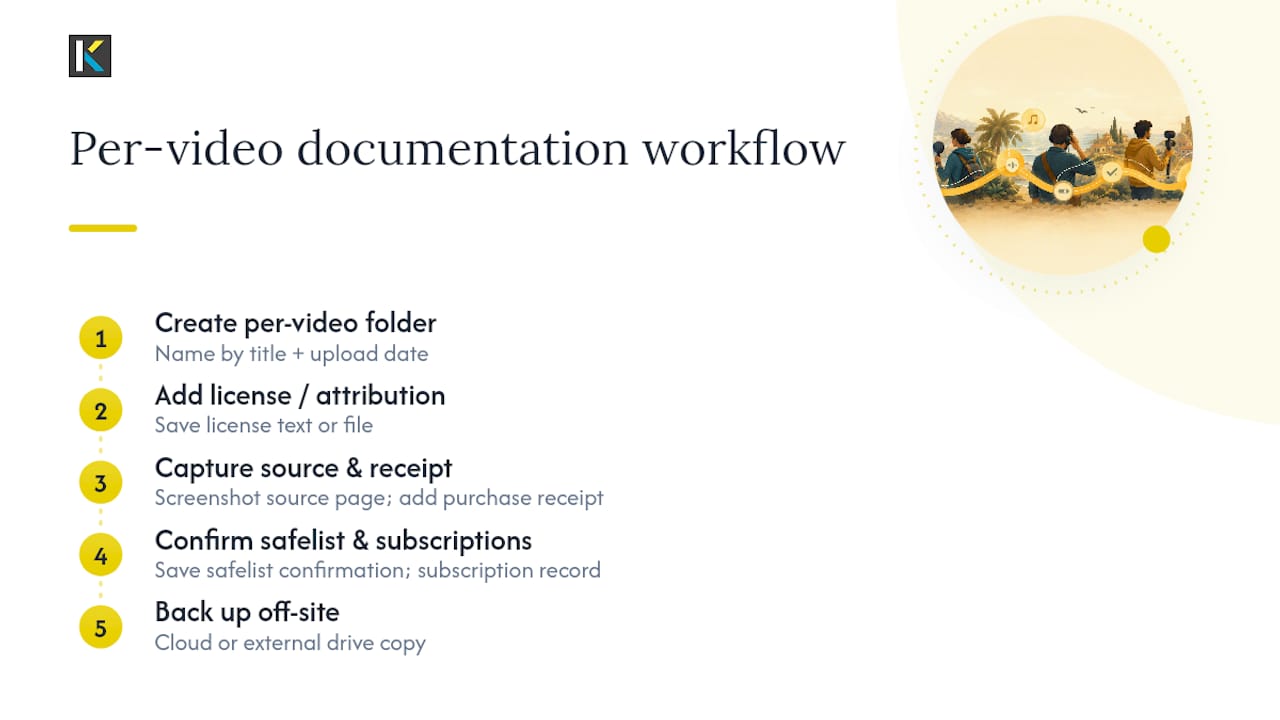
For recurring paid subscriptions, keep a running record covering activation dates and confirmation links; the Kudoflix royalty-free music guide walks through exactly what to check and save before you publish, which is a useful reference to bookmark alongside your own folder system.
Back up this documentation somewhere outside your main drive too. A folder that only lives on the same computer where your editing files sit is one hardware failure away from useless right when you need it most.
What Repeated Rejections Taught Me About Prevention Over Disputes
Creators who keep getting flagged usually share one habit: they trust the label on a track more than the system that actually enforces copyright. “No copyright music” in a video title means nothing to Content ID. Only the fingerprint match matters, and that match doesn’t care what the uploader called their file.
The fix that actually works is boring, and that’s the point. Test every track on an unlisted upload before it goes public. Keep a license proof folder per video, not a vague memory of “I think I got that from a free site.” Default to platform-cleared sources first, whether that’s the YouTube Audio Library or a track licensed through Creator Music, and only reach for paid libraries once your upload volume justifies the subscription cost.
None of this requires expertise. It requires a checklist you actually run every time, even on the tenth video of the month when you’re tired and just want to hit publish. The creators who stop getting claims aren’t the ones with better luck. They’re the ones who made verification boring enough to never skip.
— Mandrixx
Try Kudoflix for Editing With Cleared Music Built In
Every step above, checking licenses, saving receipts, testing unlisted, exists because free music and video editing usually live in separate places. Kudoflix closes that gap by building a royalty-cleared music library directly into the editor, alongside free stock video, templates, and export presets, so you’re pulling audio from a source already designed for monetized publishing instead of hunting across five tabs and hoping a license holds up.
There’s no download or install involved, which matters if you’re editing between shoots or on a laptop that can’t handle another heavy application. Browse the free stock music and video library, drop a track into your timeline, and export straight to YouTube’s specs. If you’ve been burned by a claim before, start a project in Kudoflix and see how much of that friction disappears before you ever hit publish.
Where to Verify These Rules Yourself
Platform rules shift, so bookmark the primary sources rather than relying on secondhand summaries. Start with YouTube’s own Audio Library documentation and the Creator Music support page, both of which get updated directly by YouTube as licensing terms shift.
For free-catalog options, Free Music Archive remains one of the larger curated libraries, though remember to check each track’s license individually. TechCrunch’s coverage of the Creator Music launch offers useful context on why YouTube built the tool in the first place, and why platform-first licensing tends to outperform third-party promises on protection.
- YouTube Audio Library documentation
- Creator Music licensing rules
- Free Music Archive catalog
- TechCrunch on Creator Music’s launch
Sources
- Use music and sound effects from the Audio Library – YouTube Help
- Creator Music documentation – YouTube Help
- Free Music Archive
- YouTube launches its new commercial music licensing resource, Creator Music – TechCrunch
Recommended