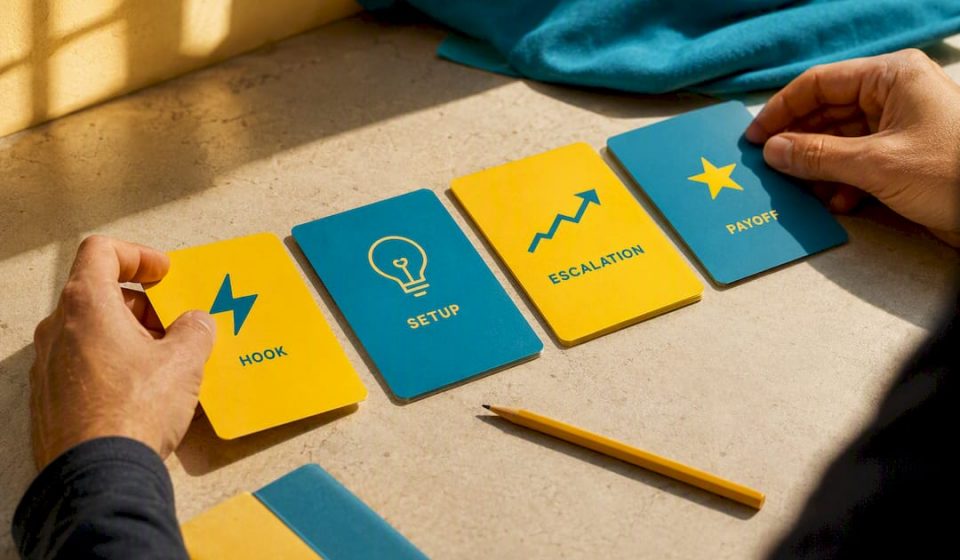

The fastest way to edit YouTube Shorts is to find your best 1 to 3 second moment, build around it with a hook-setup-payoff structure, cut every 2 to 4 seconds, burn in captions, and export vertical 9:16 MP4 in H.264. For speed, use YouTube Create; for more control over templates and captions, use a no-download online editor like Kudoflix.
TL;DR:
- Creating an effective Short revolves around finding the most engaging 1 to 3 seconds and building a simple four-beat structure: hook, setup, escalation, and payoff.
- Using bursty visual changes every 1.5 to 4 seconds, along with bold captions and focused sound design, significantly boosts viewer retention.
- Batch production with reusable templates, caption presets, and a consistent visual style can dramatically speed up the editing process.
- Stick to licensed music from YouTube’s library and avoid third-party clips to prevent muted or removed Shorts due to copyright claims.
Table of Contents
- How Do You Edit a YouTube Short Step by Step?
- Which Editing Tool Fits Your Shorts Workflow?
- What Editing Techniques Actually Increase Retention?
- How Do YouTube’s Native Editing Features Speed Up Your Workflow?
- What Export Settings Keep Your Short’s Quality Intact?
- How Can Templates Help You Batch-Produce Shorts Faster?
- What Copyright Rules Apply to Music and Clips in Shorts?
- Why This Workflow Is the One Kudoflix Builds Around
- Try the No-Download Editor Built for Fast Shorts Turnaround
- Sources
How Do You Edit a YouTube Short Step by Step?
Editing a Short isn’t about polish first. It’s about sequence. Do these steps in order and you’ll cut your editing time in half while making a video people actually finish.
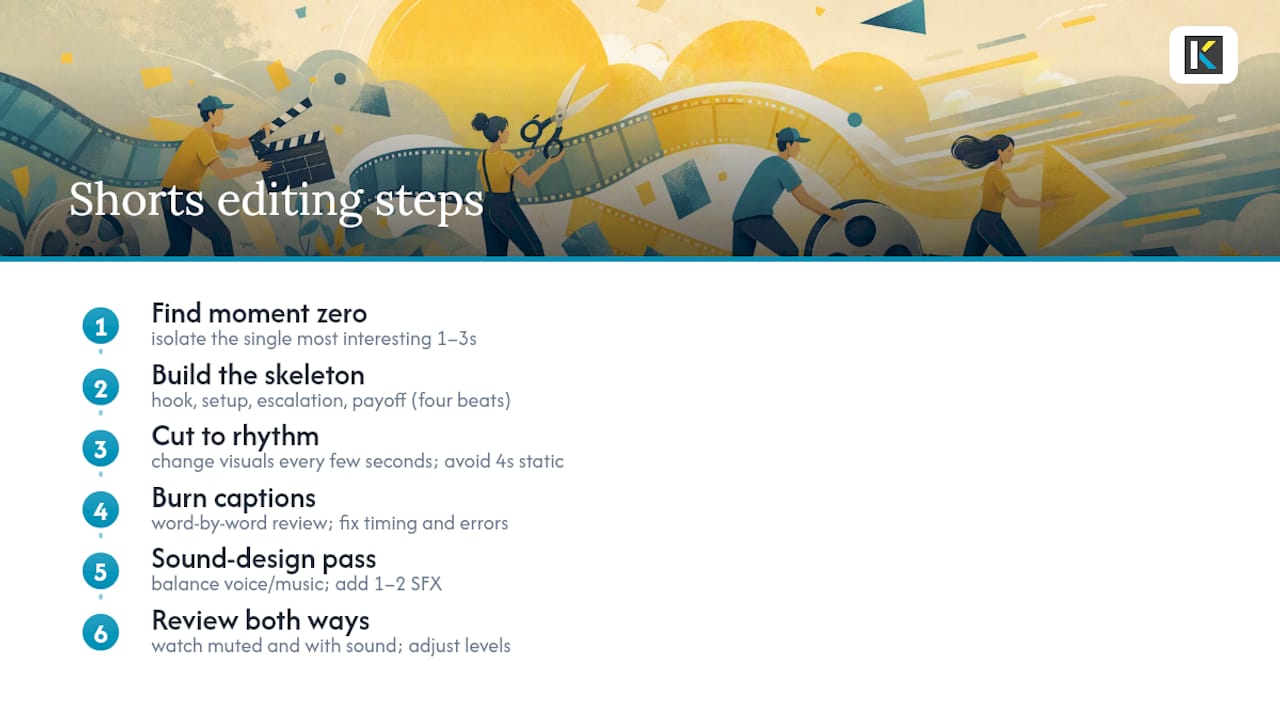
1. Find moment zero. Scroll your raw footage and isolate the single most interesting 1 to 3 seconds, whether that’s a punchline, a surprising result, or mid-action chaos. This becomes either your opening frame or the tease you flash before rewinding to context. Skipping this step is the number one reason Shorts get scrolled past in under two seconds.
2. Build the skeleton. Arrange four beats: hook, setup, escalation, payoff (or a loop back to the hook). You don’t need more structure than that. A 30-second Short with these four beats will outperform a meandering 45-second one every time.
3. Cut to rhythm. Change something visually every few seconds, a new angle, a zoom, a cut, or a text pop. Static shots longer than 4 seconds without motion or a caption change are where attention drops off. Speed up dead air; slow down for the punchline or the payoff so it actually registers.
4. Burn in captions word by word. Auto-caption tools get you 90% there, but always review for timing drift and misheard words before exporting.
5. Run one sound-design pass. Balance voice above music, duck the music under dialogue, and drop in one or two small sound effects to punch up a cut or a reveal.
6. Watch it once on mute, once with sound. If it doesn’t make sense muted, your captions or visuals need work. If the sound competes with your voice, adjust levels before export.
Pro Tip: Export a rough cut and watch it at 1.5x speed. If it still holds your attention sped up, the pacing is right. If you get bored even at 1.5x, you have a cutting problem, not an audio problem.
Which Editing Tool Fits Your Shorts Workflow?
Your choice depends on how much control you need versus how fast you need to move.
- YouTube’s native tools work best when you’re already inside the app and want zero export friction. The built-in timeline editor handles trimming, text, and sound without ever leaving YouTube. Budget 10 to 15 minutes for a simple Short.
- Mobile apps win on speed and trending effects, but most cap out on precise audio mixing or advanced text animation. Good for 15 to 20 minute turnarounds when the concept is simple.
- Online editors (no download required) hit the sweet spot between speed and control. This is where Kudoflix lives: a browser-based editor with vertical templates, caption presets, and export presets built for social formats. Expect 20 to 40 minutes for a Short with custom captions and sound design, without installing anything or waiting on renders to preview.
- Desktop editors make sense when you’re color grading, layering multiple audio tracks, or working from 4K source footage that needs heavy correction. Budget an hour or more, plus render time.
If you’re editing directly from a phone, a quick smartphone editing workflow can shave real time off trimming and captioning before you ever touch a desktop tool.
What Editing Techniques Actually Increase Retention?
Most Shorts fail in the first two seconds, not the last ten. Fix the front end first.
Hooks that work: Start mid-action instead of establishing context first. Flash a text promise (“wait for it”) if the payoff needs setup. Or open with a pattern interrupt, something visually or logically off, that forces a second look.
Pacing: Practitioner guides and case studies point to visual changes every 1.5 to 4 seconds as a consistent marker of higher-retention Shorts, tied closely to pacing and caption practices that hold attention. That doesn’t mean cutting for the sake of cutting. It means every beat should earn its length: hold a shot only as long as it’s giving new information.
Captions: Since most viewers watch muted, burned-in captions aren’t optional. Keep them bold, high-contrast, and positioned in the middle third of the frame, well clear of the bottom 15% where YouTube’s UI elements (like the description and profile info) sit. If you want a faster route to clean, accurate caption files before you burn them in, a transcription tool built for Shorts can save you the manual typing pass.
Sound design: Keep dialogue as the loudest element in the mix, duck background music by roughly 6 to 10 dB whenever someone’s talking, and use one small sound effect per key moment rather than layering several that muddy the mix.
- Punch-zoom on a key word or reaction to add emphasis without a full cut.
- Cut on action (a hand movement, a head turn) rather than on stillness, so the edit feels invisible.
- Insert one b-roll shot to break up a long talking-head stretch instead of trimming the audio down.
Pro Tip: If a Short feels slow on the third watch, it’s slow. Cut two seconds from the setup before you touch anything else. Setups are almost always longer than they need to be.
How Do YouTube’s Native Editing Features Speed Up Your Workflow?
YouTube’s own tools have gotten good enough that plenty of Shorts never touch a third-party editor.
- Edit with AI generates a rough draft from your uploaded clips based on a chosen edit style. Treat the draft as a starting point, not a finished product; review pacing and trim anything the AI over-holds.
- The timeline editor lets you control exactly when text, stickers, and voiceover appear relative to your clips, which matters when a caption needs to land on a specific word or beat, as YouTube’s own editing documentation walks through in detail.
- Licensed trending audio is searchable directly inside the Shorts creation flow, which avoids the copyright guesswork of pulling a track from somewhere else.
- Remixing long-form videos into Shorts is built in too. You can pull a clip straight from an existing upload, pick a new thumbnail, and save it as a draft before publishing.
Finish inside YouTube when your edit is simple and you want zero export delay. Move to an external editor when you need custom caption styling, multi-layer sound design, or a reusable template across multiple Shorts.
What Export Settings Keep Your Short’s Quality Intact?
Get this wrong and even a great edit looks soft or gets misclassified on upload. The format has to be vertical, and the compression settings matter more than most creators realize.
| Setting | Recommended value |
|---|---|
| Aspect ratio | 9:16 (vertical) |
| Resolution | vertical 9:16 |
| Container | MP4 |
| Codec | H.264 |
| Frame rate | 30fps standard |
| Bitrate | Higher end for motion-heavy content; lower end is fine for talking-head |
Exporting straight from your editor at these settings avoids the double compression you get from uploading a file that YouTube then re-encodes on top of an already-compressed export. For platform-specific presets across editors, the YouTube export settings breakdown covers the exact numbers for common software.
Before you hit publish, run through this: title written for search and curiosity, first 150 characters of the description doing real work (not just a hashtag dump), a cover frame or thumbnail that reads clearly at a small size, and 2 to 3 relevant hashtags. That’s the whole checklist, YouTube’s guide on the practitioner-recommended standard backs the same core specs.
How Can Templates Help You Batch-Produce Shorts Faster?
Once you’ve edited a handful of Shorts, you’ll notice you’re rebuilding the same intro, caption style, and sound palette every time. Stop rebuilding it.
- Design one reusable template: fixed opening animation, one caption font/color combo, and a go-to set of two or three sound effects.
- Save your caption timing and motion presets so new footage slots into the same visual rhythm without manual re-timing.
- Batch your shoots: film five to ten clips in one session, then edit them in sequence using the same template, queuing exports back to back instead of starting from a blank project each time.
- Templates cut your polishing time because the visual identity is already locked in; you’re only adjusting the content inside it.
A trending vertical format workflow shows how this kind of batching plays out across a full week of content instead of one video at a time.
Pro Tip: Build your template around your slowest element, usually captions or sound sync, not your fastest. That’s where batching actually saves time.
What Copyright Rules Apply to Music and Clips in Shorts?
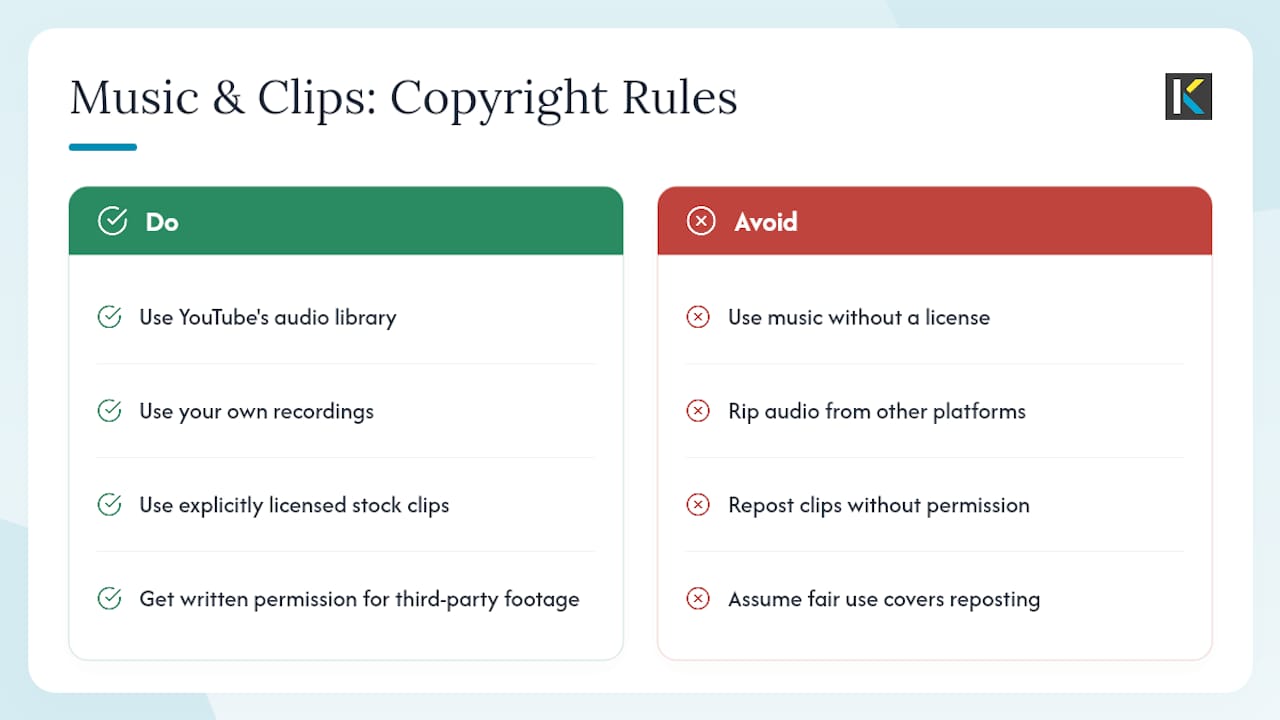
Using someone else’s music or footage without the right license is the fastest way to get a Short muted, removed, or claimed. YouTube’s built-in audio library exists precisely so you can search for licensed trending tracks without guessing whether a clip is safe to use, a much safer route than pulling audio from another platform or ripping it from a song you heard elsewhere.
Third-party clips carry the same risk. If you’re using footage you didn’t shoot, you need explicit permission, a license, or confirmation it falls under fair use, which is a narrower carve-out than most creators assume; commentary, criticism, and parody have a much stronger fair use case than simply reposting a clip with a caption. Copyright claims on Shorts typically result in the track being muted or replaced automatically rather than a strike, but repeated claims can still affect monetization and channel standing.
The safest habit is to treat every piece of audio and footage as licensed unless you can confirm otherwise. Stick to YouTube’s audio library, your own recordings, or explicitly licensed stock clips, and you avoid the problem entirely instead of hoping a claim never lands.
Why This Workflow Is the One Kudoflix Builds Around
Kudoflix’s editor exists because the workflow above shouldn’t require ten browser tabs and a render queue. Vertical templates, caption presets, and export presets map directly to the hook-pacing-captions-export sequence, so you’re not rebuilding your setup on every Short. The examples page shows what that looks like across different content types, from talking-head clips to fast-cut montages.
None of this replaces judgment. Templates speed up execution, but the hook, the pacing decisions, and the caption timing still come from watching your own footage closely and cutting where attention would actually drop.
— Mandrixx
Try the No-Download Editor Built for Fast Shorts Turnaround
Kudoflix skips the install and the render wait entirely: open a browser, drop in your clips, and edit with vertical templates and caption presets already built for 9:16 export. For creators batching multiple Shorts a week, the export presets alone cut out the manual settings check that trips up a lot of first-time uploads. If you’re tired of software that buries basic trimming behind a steep learning curve, see why so many editing tools overcomplicate a simple job and then head to the Kudoflix online editor to start your first Short from a template instead of a blank timeline.
Sources
Recommended