The fastest way to make a picture-in-picture video is to drop your inset clip onto a second video track above your main footage, resize and reposition it into a corner, add a border or shadow for separation, then export as a single MP4. This is an editing technique, not the floating playback window your browser shows when you tab away from a video. Kudoflix runs this whole process in a no-download browser editor, making it a practical option for tutorials, social clips, and presentations alike.
TL;DR:
- Creating a picture-in-picture video involves stacking, resizing, and customizing inset clips before exporting as a single MP4 file, typically in 8-12 Mbps for 1080p.
- Tools range from desktop editors like Premiere and Resolve for precision to browser-based options like Kudoflix for speed and convenience; matching frame rates is crucial to avoid stutter.
- Good PiP design requires keeping insets secondary, with borders and color matching, while avoiding overlap with captions or key details in the main footage.
- Using browser-based editors like Kudoflix streamlines the process, allowing quick iteration without software downloads, with static insets generally better for tutorials and animated ones for reactions.
Table of Contents
- What Does Picture-in-Picture Mean in Video Editing?
- Which Tools Should You Use for a PiP Video?
- How Do You Build a PiP Video on Desktop Software?
- Can You Make a PiP Video Without Installing Software?
- How Do You Set Up PiP for a Live Stream?
- What Design and Audio Rules Keep PiP Looking Clean?
- What Export Settings Make a PiP Video Publish-Ready?
- Make Your PiP Video Without Downloading Anything
- Should Your PiP Be Static or Animated?
- Sources
What Does Picture-in-Picture Mean in Video Editing?
Picture-in-picture, or PiP, means one video inset inside another and baked permanently into the exported file. It has nothing to do with the small floating player your phone or browser pops up when you swipe away from a video. That’s a playback feature. This is a production technique, and it shows up constantly across formats creators actually publish:
- Tutorials: a webcam feed in the corner while a screen recording fills the frame
- Product demos: a close-up detail shot inset over a wider unboxing or usage clip
- Reaction videos: your face reacting live in a small window over the content being watched
- Presentations: a speaker inset staying visible over slides or shared screens
The picture-in-picture effect overlays a smaller video window over a main video, and it’s become standard in tutorial and demo content because it keeps context and commentary on screen at the same time.
Which Tools Should You Use for a PiP Video?
Your tool choice comes down to a trade-off between speed and control. Before opening anything, gather your main clip, your inset clip, and confirm both are in a common format like MP4 or MOV. Check your device’s storage and RAM too. Compositing two video tracks taxes older laptops and budget phones fast.
- Desktop editors (Premiere, Resolve, iMovie): best when you need frame-accurate keyframe animation or complex layering
- Browser-based editors like Kudoflix: best for speed, zero installs, and quick turnaround on social content
- Mobile apps: best for on-the-go edits with pinch-to-scale overlay controls
- Live-stream software: necessary when the PiP feed needs to update in real time during a broadcast
Some browser tools process everything locally in the browser tab itself, so your footage never touches a server, which matters if you’re editing sensitive footage or working on spotty Wi-Fi.
Pro Tip: Match your inset clip’s frame rate to your main clip before you start. Mismatched frame rates cause subtle stutter in the overlay that’s hard to spot until you export.

How Do You Build a PiP Video on Desktop Software?
Desktop editors give you the most precise control, and the workflow is consistent whether you’re in Premiere, Resolve, or Apple’s iMovie, which lets Mac users drag a secondary clip above a primary one and apply its overlay setting directly.
- Import your main clip to track V1 and your inset clip to track V2, directly above it.
- Align and trim both clips so they start and end where you want the overlay active.
- Apply transform or scale controls to shrink the inset, typically to 25 to 35 percent of frame size.
- Position the inset in a corner, usually lower right, away from any on-screen text or captions.
- Add a border or drop shadow so the inset reads as a distinct layer instead of blending into the background.
- Animate with keyframes if you want the inset to grow, shrink, or slide during specific moments. iMovie and most NLEs support this natively for movement over time.
- Balance your audio: duck the background music under any inset dialogue and make sure the inset clip’s own audio is synced to the frame, not just the timeline.
- Export using an H.264/MP4 preset, targeting 8 to 12 Mbps for 1080p or 35 to 45 Mbps for 4K, depending on your platform’s requirements.
Dynamic, animated PiP tends to boost engagement in short-form content, but only when the movement is purposeful rather than constant — a resize that happens once to emphasize a point works better than an inset that drifts around the frame the whole time.
Can You Make a PiP Video Without Installing Software?
Yes, and for most social and marketing content, this is the faster path. Browser-based PiP makers let you upload a main clip and an inset clip, position the inset, render, and download a composited MP4 without ever touching a desktop app.
- Upload both clips to your chosen browser editor.
- Choose a preset corner position for the inset (lower right is standard, but test lower left if your main footage has action there).
- Adjust size and duration so the inset appears only where it adds value.
- Render and download the finished MP4.
Mobile apps follow a similar logic: add your inset as an overlay layer, pinch to scale it, snap it to a preset position, and export at a social-friendly aspect ratio like 9:16 for Stories and Reels or 1:1 for feed posts. Most tools handle MP4 and MOV inputs and will match your output length to the main clip’s duration if your inset runs shorter or longer.
Pro Tip: If your phone is low on storage, trim your inset clip before uploading. Smaller source files render faster and reduce the chance of a browser tab crashing mid-export.
Working entirely in-browser also speeds up iteration. Creators who need quick retakes skip the friction of managing large project files and repeated downloads.
How Do You Set Up PiP for a Live Stream?
Live PiP setups need to hold steady for hours, not just look good in a single export. In OBS-style software, treat each element as its own locked source:
- Add your camera and screen/game sources, then lock their positions so nothing shifts mid-stream.
- Build scene presets with different PiP bubble sizes for different moments (a larger face-cam during commentary, a smaller one during gameplay).
- Use hardware encoding whenever your GPU supports it. It offloads work from your CPU and keeps stream stability intact during long broadcasts.
- Test your bitrate and resolution together before going live. A 1080p stream at too low a bitrate looks worse than 720p at a stable one.
- Reserve PiP for reactions or chat highlights rather than anything that blocks your main feed’s key action.
Scene management and source locking matter more in live PiP than in edited video, since there’s no second take if a source drifts out of position on camera.
What Design and Audio Rules Keep PiP Looking Clean?
Good PiP follows a hierarchy: your main footage carries the story, and the inset supports it. Break that order and viewers lose track of what they’re supposed to be watching.
- Keep the inset secondary in size and placement, defaulting to the lower right corner unless your main footage has action there.
- Use a border, subtle shadow, and consistent typography across both layers so the composite reads as one deliberate piece, not two clips slapped together.
- Match color grading between the two clips. A warm-toned main video with a cool, flat inset looks unfinished.
- Never let the inset cover captions, faces, or product details in the main footage.
- Duck background music under any spoken audio and normalize voice levels between the two clips so one isn’t noticeably louder.
- Add captions or an SRT file. PiP content often gets watched with sound off, so legible inset content that works without audio performs better across the board.
Pro Tip: Sketch your frame layout before you open your editor. Mark where the inset, captions, and any on-screen text will sit so nothing overlaps once you’re compositing. Planning the frame ahead of time saves real time once you’re inside the timeline. If you’re building a portfolio piece rather than a one-off social clip, the same layout discipline applies to combining photos and video into one cohesive presentation.
What Export Settings Make a PiP Video Publish-Ready?
Your export choices decide whether the PiP composite actually looks right once it lands on a platform, not just in your editor’s preview window.
- Export as H.264/MP4 for the widest compatibility across YouTube, Instagram, TikTok, and LinkedIn.
- Match aspect ratio to platform: 9:16 for Stories and Reels, 16:9 for YouTube and presentations, 1:1 for feed posts.
- Target bitrate by resolution: roughly 8 to 12 Mbps for 1080p, 35 to 45 Mbps for 4K.
- Decide on burned-in captions versus a separate SRT file depending on whether the platform auto-generates its own.
- Build a thumbnail that shows both layers, so viewers see the inset context before they click.
- Watch the final export on a phone screen and check that audio between main and inset tracks feels balanced before uploading. What sounds fine on studio monitors can be lopsided on phone speakers.
PiP formats work especially well for product demos and testimonials in marketing content, since the inset keeps a product visible while a second layer handles commentary or context.
Make Your PiP Video Without Downloading Anything
Kudoflix runs the entire PiP workflow in your browser, so there’s no download, no install, and no waiting on render software to update before you can start editing. The template library includes overlay presets built specifically for inset positioning, meaning you’re not starting from a blank timeline every time you need a tutorial or reaction format.
A typical Kudoflix workflow looks like this: pick a PiP-style template, drop your main and inset clips into the layout, adjust size and position with the built-in transform controls, then export. The platform’s timeline and overlay tools handle the layering automatically, and rendering happens fast enough that you can iterate through a few versions in one sitting instead of waiting on a single long export. Creators building presentation content can start from the conference-focused editor instead of building a speaker-inset layout from scratch. Explore the full set of use cases to see which template fits your next project, and start your first PiP edit today.
Should Your PiP Be Static or Animated?
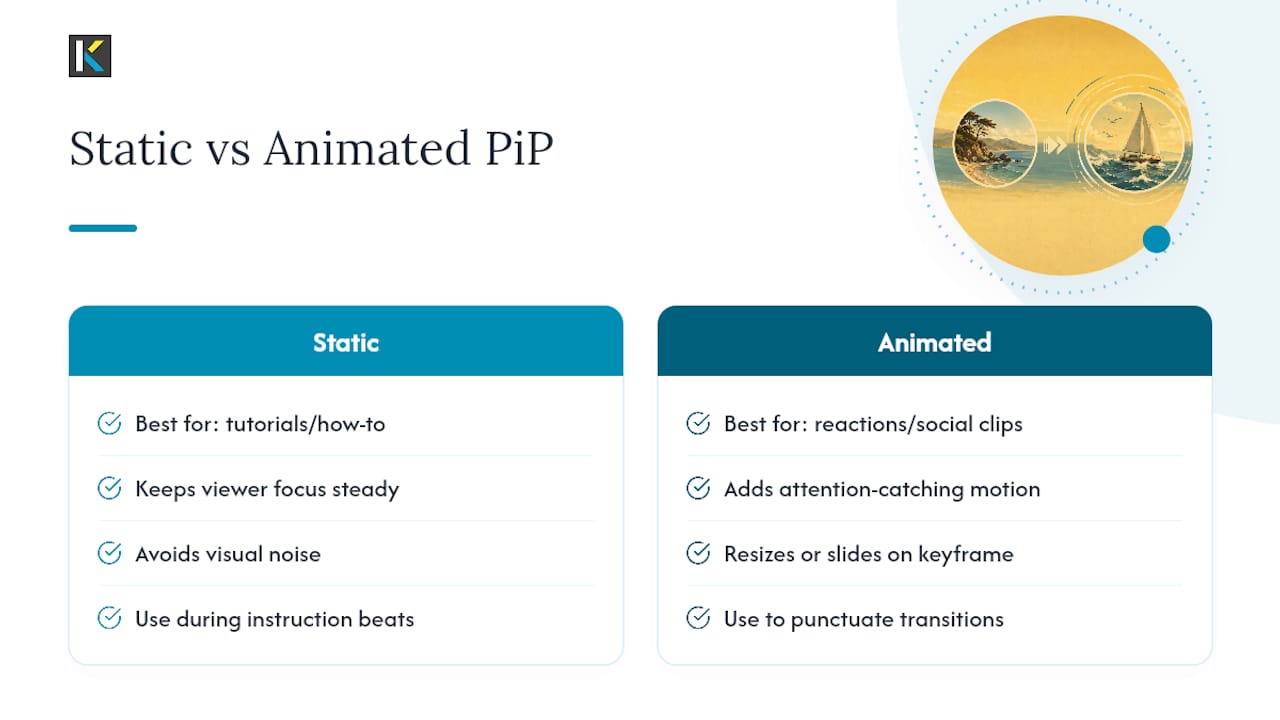
Static insets win for tutorials and how-to content, where a viewer needs to follow steps without visual noise pulling their eye around the frame. Animated PiP, where the inset resizes or slides in on a keyframe, earns its place in short-form reaction content and social clips where a little movement holds attention during a scroll.
The mistake I see most often is creators defaulting to animation everywhere, assuming movement equals engagement. It doesn’t. A tutorial with a bouncing webcam inset is just harder to watch. Mix both within a single video if it serves the pacing: static during instructional beats, a quick animated pop when you want to punctuate a reaction or transition.
— Mandrixx
Sources
- How to create picture in picture effect – The Tech Edvocate
- How to Make a Picture-in-Picture Video Online Free — No App, No Watermark | WildandFree Tools
- Picture-in-Picture Video: The Unexplored Goldmine For Brands | Videowise
- Best Practices for Maintaining Clarity and Focus in Multi-Source Frames – BrightLearn
Recommended