For vertical short form, export at 1080×1920 pixels (9:16). For horizontal long form, export at 1920×1080 (16:9). Wrap both in an MP4 file using H.264 video and AAC audio, and keep the file under 500MB whenever you can. That single combination covers Instagram Reels, TikTok, YouTube Shorts, Facebook Reels, and Snapchat on the vertical side, and standard YouTube, LinkedIn feed video, and most Facebook feed placements on the horizontal side.
That’s the export you should default to before you touch anything else. Almost every platform-specific quirk below is a variation on those two frame sizes, not a departure from them.
A few things still trip creators up even with the right frame size:
- Bitrate and codec settings that cause compression artifacts after a platform re-encodes your file
- Safe zones where captions or logos get covered by profile icons, like buttons, or caption boxes
- File-size caps that differ depending on whether you upload from a phone app or a browser
- Ad specs that diverge slightly from organic post specs on the same platform
If your video needs to hit more than one placement, the fastest path is shooting and editing in vertical first, then generating horizontal and square crops from that same master file rather than reshooting, as explained in the Creative Ad Formats List for Digital Marketers. The quick-reference table below gets you the numbers; the sections after it cover the exceptions that actually matter.
Key Takeaways
Getting social video right depends less on memorizing every platform’s pixel count and more on defaulting to 1080×1920 for vertical, 1920×1080 for horizontal, and building safe zones into every export from the start.
| Point | Details |
|---|---|
| Default to two frame sizes | Use 1080×1920 for vertical short-form and 1920×1080 for horizontal long-form as your starting point everywhere. |
| Standardize your codec | Export MP4 with H.264 video and AAC audio; it’s accepted across every major platform without re-encoding issues. |
| Respect safe zones | Keep the top 14% and bottom 20% of vertical frames clear of text, logos, and faces to avoid UI overlap. |
| Watch device-specific caps | App uploads often carry tighter file-size limits than web uploads on platforms like TikTok. |
| Shoot vertical, crop down | Capture at the highest resolution in a vertical frame, then generate horizontal and square crops from that master. |
Where to verify these specs directly
Platform specs shift often enough that primary sources matter more than any single guide. YouTube’s own Shorts requirements page confirms length and resolution limits directly from the source. Sprout Social’s specs guide tracks ad-specific formats across networks. Dacast’s breakdown of aspect ratios explains why vertical dominates mobile while 16:9 holds for streaming.
Table of Contents
- Social Media Video Sizes at a Glance
- What Are the Best Instagram Video Dimensions?
- How Should You Size Videos for TikTok?
- What Video Size Works Best on YouTube and Shorts?
- What Are Facebook’s Video Size Requirements?
- What Video Sizes Work Best on X, LinkedIn, Pinterest, and Snapchat?
- What Export Settings Should You Use for Social Video?
- Get Export-Ready Video Without Fighting Software
- An Editor’s Take on Chasing Perfect Specs
- Sources
Social Media Video Sizes at a Glance
Here’s the cheat sheet version. Treat this as your export checklist, then check the platform section below for the caveats that apply to your specific placement.
Two footnotes worth remembering: app-based uploads almost always carry tighter file-size caps than uploading the same video through a desktop browser, and platforms revise these numbers often enough that a spec you memorized last year might already be outdated. SocialPilot’s cheat sheet and Sprout Social’s specs guide both track these changes and are worth bookmarking alongside this page.
What Are the Best Instagram Video Dimensions?
Instagram runs three distinct video shapes depending on where the content lands, and mixing them up is the single most common export mistake creators make.
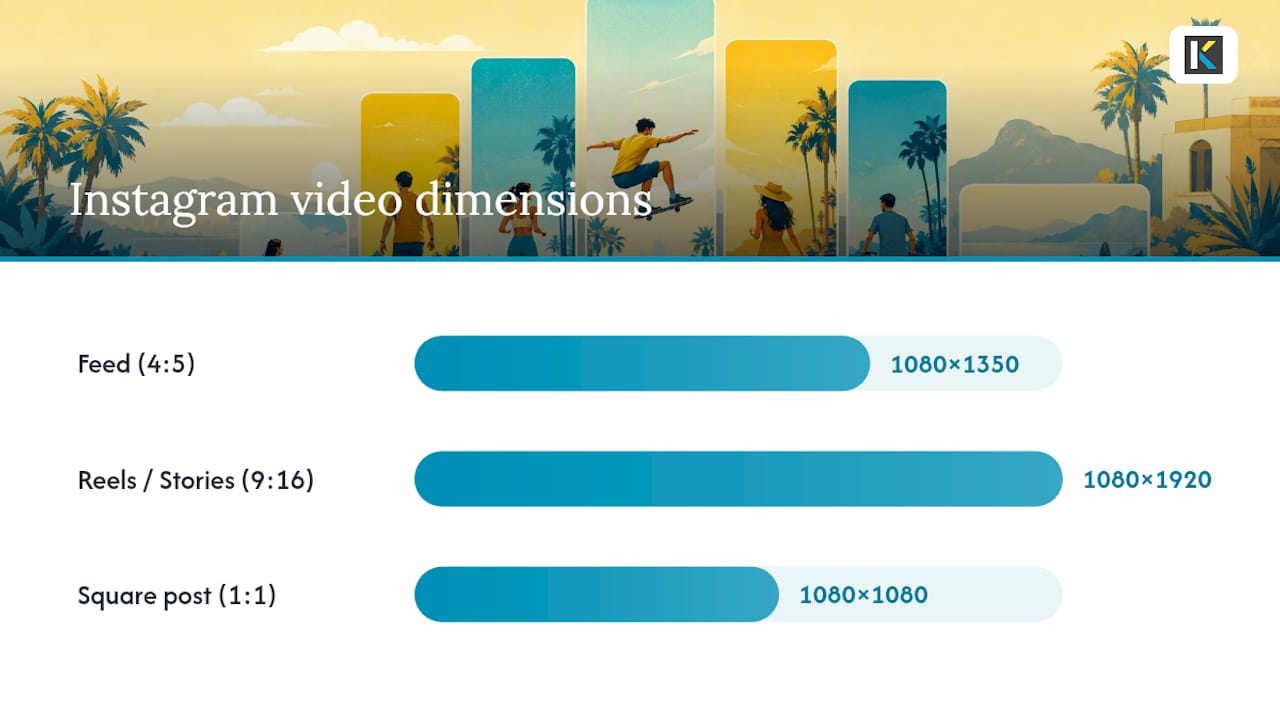
Feed posts perform best at 1080×1350 pixels (4:5), the tallest ratio Instagram allows in the main grid before it crops. Reels and Stories both want 1080×1920 (9:16), matching the full-screen vertical experience. If you’re posting to the classic square grid or a carousel, 1080×1080 (1:1) still works, though it wastes vertical screen space compared to 4:5.
File size and length work differently depending on how the video reaches Instagram. In-app recordings for Reels cap out at 90 seconds, while Stories are capped at 60 seconds per segment. Uploaded files can run larger, up to roughly 4GB, but heavier files take longer to process and are more likely to stall mid-upload on a weak connection.
For export settings, stick with MP4 container, H.264 video codec, AAC audio, a frame rate of 30fps, and a bitrate around 8 to 10 Mbps for 1080p. Going lower than that on bitrate is where you start seeing blocky compression in fast-motion clips.
- Keep critical text and faces within the center 80% of the frame to survive feed cropping
- Design your first frame as a strong static thumbnail since Instagram grabs it automatically
- Avoid placing logos in the bottom 20% of Reels, where the caption and share icons sit
Pro Tip: Shoot your Reels footage a little wider than 9:16 in your camera app when possible. That gives you breathing room to reframe in your editor instead of getting locked into whatever crop your phone chose during recording.
How Should You Size Videos for TikTok?
TikTok’s native format is 1080×1920 pixels at a 9:16 ratio, and departing from it is the fastest way to get letterboxed with black bars on either side. The platform does accept 1:1 and 16:9 uploads, but both get padded to fit the vertical player, shrinking your actual visible frame.
File-size caps vary by device in a way that catches a lot of creators off guard. Uploads through the iOS app are capped around 287MB, while Android’s app cap sits closer to 72MB. Uploading through TikTok’s web interface on desktop raises that ceiling considerably, which matters if you’re exporting a heavier, higher-bitrate master file.
Length limits depend on how you’re getting the video onto the platform. In-app recording tops out at a few minutes depending on your account settings, while direct uploads can run up to 10 minutes for standard posts.
- Use 30fps for standard content, 60fps only if your footage has fast motion worth preserving
- Export at a minimum bitrate of 6 Mbps for 1080p; TikTok’s compression is aggressive and will punish low-bitrate files
- Never upload a horizontal video and expect the platform to crop it intelligently. Reframe it yourself first
- For ads specifically, TikTok recommends the same 9:16 frame but with your call-to-action visible in the first 3 seconds, since compression can soften text that appears later
What Video Size Works Best on YouTube and Shorts?
YouTube runs two parallel formats now, and treating them as one export is a mistake. Standard long-form video wants 1920×1080 pixels (16:9), with 4K (3840×2160) as an option if your source footage supports it and you want future-proofing for higher-resolution playback.
Shorts, by contrast, live entirely in the vertical world: 1080×1920 pixels (9:16), with a hard maximum length of 3 minutes. YouTube detects vertical video under 3 minutes automatically and routes it into the Shorts shelf, even if you didn’t tag it as a Short, so don’t upload a vertical trailer clip unless you actually want it treated that way.
File-size limits are generous on both formats, reaching up to 256GB or 12 hours of runtime for verified accounts, though almost nobody hits that ceiling. Unverified accounts face a 15-minute length cap regardless of file size.
- Use MP4 with H.264 (or HEVC for 4K masters) and AAC audio for both formats
- Render Shorts at 1080×1920 even if your source is 4K vertical. Downscaling avoids unnecessary processing time
- Keep your master file in 16:9 whenever your content works for both formats, then crop a vertical Short separately rather than shooting two versions
Pro Tip: If you’re building a long-form video that has a strong 30 to 60 second segment worth repurposing, edit that Short as a separate export with its own pacing. A direct vertical crop of a horizontal edit almost always loses the framing that made the moment work in the first place.
What Are Facebook’s Video Size Requirements?
Facebook’s feed still supports both square and landscape video, with 1080×1080 (1:1) or 1920×1080 (16:9) both performing reasonably depending on whether your audience is scrolling mobile or watching on desktop. Square tends to take up more vertical screen space on a phone, which is why a lot of feed-first creators default to it.
Reels and Stories follow the same 1080×1920 (9:16) standard as Instagram, since Meta shares infrastructure across both apps. Reels cap at 90 seconds; Stories segments cap at 20 seconds each, though you can chain several together.
Facebook ads have their own quirks worth knowing before you submit a campaign. Carousel ads want 1080×1080 square crops for consistency across cards, and Collection ads use a cover video that performs best at 1200×628 (roughly 1.91:1) to match the layout Facebook wraps around it.
- Feed video accepts files up to 10GB and runs as long as 240 minutes, though nobody’s engagement rewards a four-hour feed post
- Reels and Stories share the same 4GB cap as Instagram
- Stick with H.264 and AAC; Facebook’s transcoder handles that combination with the fewest artifacts
- Live broadcasts default to 16:9 at 1280×720 minimum, since Facebook still treats live differently from on-demand upload specs
What Video Sizes Work Best on X, LinkedIn, Pinterest, and Snapchat?
These four platforms get less attention than the big three, but each has specific quirks that matter if you’re running a real cross-platform strategy.

X (formerly Twitter) recommends 1200×675 pixels (16:9) for in-feed video, with a maximum length of 140 seconds for most accounts and a file-size ceiling around 512MB. Square 1:1 video also displays cleanly in the timeline if your source material is already cropped that way.
LinkedIn favors 1920×1080 (16:9) for standard feed video, though square 1:1 crops perform competitively for thought-leadership clips viewed primarily on mobile. LinkedIn ads support both ratios, with a 10-minute maximum length and a 5GB file-size cap, generous enough that compression settings rarely become the bottleneck.
Pinterest treats video pins almost like vertical billboards. The platform recommends 1080×1920 (9:16) for maximum screen real estate, though 2:3 crops (1000×1500) also display well in the standard pin grid without the awkward crop that 9:16 sometimes gets in search results. Keep files under 2GB and under 15 minutes.
Snapchat is fully vertical, no exceptions: 1080×1920 (9:16) for both Spotlight and Stories placements, capped around 60 seconds per segment and 1GB per file. Snapchat’s in-app camera records natively in this ratio, so most upload issues come from importing horizontal footage shot elsewhere and forcing a crop that clips faces or text.
- X: 16:9 or 1:1, keep files under 512MB
- LinkedIn: 16:9 preferred for feed, square works for mobile-first thought leadership
- Pinterest: 9:16 or 2:3, avoid 16:9 entirely since it displays as a thin strip in the pin grid
- Snapchat: 9:16 only, shoot natively in-app when possible to avoid crop errors
What Export Settings Should You Use for Social Video?
Getting the frame size right and then exporting badly wastes the work. Follow this sequence every time you render a final file:
- Container: use MP4 by default. It’s accepted everywhere and causes the fewest rejection errors. Reach for WebM only if you’re optimizing specifically for web embeds, or HEVC if you’re delivering 4K and want a smaller file at the same visual quality.
- Video codec: H.264 remains the safest universal choice. It decodes reliably across every platform’s player and every device generation still in wide use.
- Audio codec: AAC at 128 to 192 kbps. Don’t go lower unless the video has no meaningful audio content.
- Frame rate: 30fps for most talking-head, lifestyle, and product content. Bump to 60fps only when your footage has genuine fast motion, sports, or gaming content that benefits from the smoother playback.
- Chroma subsampling: 4:2:0 is the standard every platform expects. Anything else risks a failed upload or a forced re-encode that degrades quality further.
- Bitrate: target 8 to 10 Mbps for 1080p, and 35 to 45 Mbps if you’re delivering 4K. Bitrate matters more than resolution for perceived quality. A well-encoded 1080p file at a healthy bitrate often looks sharper than a 4K file crushed down to save space.
- Captions: burn them in if you’re posting to platforms where sidecar SRT support is inconsistent (TikTok, Instagram Reels). Upload a separate SRT file for YouTube and Facebook, where native caption rendering is more reliable and lets viewers toggle captions on or off.
Keeping your export under 500MB whenever the content allows it isn’t a hard platform requirement, but it noticeably reduces failed uploads and cuts processing time on mobile connections.
Where should you leave space in a vertical frame?
Vertical video gets covered by more on-screen interface than any other format: profile icons, caption text, like and share buttons, and the search bar all sit inside your frame whether you planned for them or not. On a standard 1080×1920 canvas, leave roughly the top 14% (about 250 pixels) and the bottom 20% (about 340 pixels) clear of anything critical, following the safe-zone guidance most editors reference.
Test your crop by opening the exported file on an actual phone with the target app installed rather than trusting a preview in your editor.
- Keep faces and key text within the center 60 to 70% of the vertical frame
- Watch for TikTok’s right-side icon stack, Instagram’s bottom caption bar, and Snapchat’s top status elements
- Preview on-device before publishing, especially for ads where a covered call-to-action wastes ad spend
Pro Tip: Add a thin, temporary grid overlay in your editor showing the top 14% and bottom 20% zones while you’re placing text. It takes ten seconds and saves you from re-exporting after you spot a caption sitting behind the like button.
How do you shoot once and export for every platform?
Shoot at the highest resolution your camera supports and frame everything vertical first. You can always crop down to 16:9 or 4:5 later, but you can’t recover vertical space that was never captured in the first frame, a principle worth building your entire capture workflow around.
- Shoot in 4K vertical when possible, even if your final deliverables are 1080p. The extra resolution gives you room to reframe for square or horizontal crops without losing sharpness.
- Build export presets for each destination (Instagram Reels, YouTube Shorts, LinkedIn feed) so you’re not manually resetting resolution and bitrate every time.
- Adopt a consistent file-naming convention, something like
projectname_platform_ratio_date, so a batch of ten exports doesn’t turn into a guessing game later. - Before uploading, confirm four things every time: resolution matches the destination, codec is H.264/AAC, captions are attached or burned in, and the aspect ratio wasn’t accidentally squeezed or stretched during export.
Kudoflix’s browser-based editor handles this multi-export workflow without asking you to touch a timeline twice. Cut once in a social video editor built around templates designed for short and vertical formats, and generate your Reels, Shorts, and feed crops from the same source clip instead of rebuilding each version by hand.
Pro Tip: Save your safe-zone grid overlay as part of your export preset, not just as a one-off reference image. Future projects inherit the same margins automatically instead of you eyeballing it every time.
How often do these specs change, and where can you check?
Platforms revise upload limits, aspect ratio support, and length caps often enough that a spec sheet from even a year ago can be quietly wrong. This guide gets checked against the platforms’ own help centers on a regular schedule, and where a number shifts, we update it here rather than letting it go stale.
For deeper technical breakdowns and export presets, Kudoflix maintains a 2026 creator’s guide to social video formats alongside a full list of editor features built for exactly this kind of multi-platform export work. If you spot a spec that’s changed since publication, that’s worth flagging, since Instagram and TikTok’s continued growth as primary marketing channels means these numbers get revised more often than most creators expect.
- Platform help centers for Instagram, TikTok, and YouTube are checked directly, not secondhand
- Kudoflix’s engaging formats guide covers which of these specs actually correlate with better performance, not just technical compliance
- Reader corrections and platform-change reports get folded into the next update cycle
Get Export-Ready Video Without Fighting Software
Knowing the right pixel dimensions solves half the problem. The other half is actually producing files that hit those specs without spending an hour wrestling with software that demands a download, a license key, and a render queue before you’ve cut a single clip.
Kudoflix runs entirely in the browser, so there’s nothing to install and nothing to update before a deadline. The editor’s use cases cover exactly the workflow this guide describes: cut a master file once, then export platform-ready versions in 9:16, 1:1, or 16:9 without rebuilding your timeline for each one. Its library of templates and transitions is built around the same vertical-first, safe-zone-aware thinking covered above, so you’re not guessing where to place text or worrying that your logo will land behind TikTok’s comment icon.
If you’ve been putting up with software that takes longer to open than it does to edit a 30-second clip, that friction is the actual problem, not your understanding of aspect ratios. Try Kudoflix’s online video editor and export your next batch of platform-ready videos without touching a single installer.
An Editor’s Take on Chasing Perfect Specs
Most guides to social video sizes treat the numbers as the whole story. They’re not. I’d argue the spec sheet matters less than most creators think, and the safe zone matters more.
Here’s why: platforms re-encode almost everything you upload anyway. Hit the recommended resolution and a reasonable bitrate, and the difference between “exactly right” and “close enough” gets compressed away within seconds of hitting publish. What doesn’t get fixed automatically is a caption sitting behind TikTok’s share button, or a face cropped out of frame because you shot horizontal and let the platform force a vertical crop.
So prioritize in this order: shoot vertical-first if there’s any chance the content goes to Reels, Shorts, or TikTok. Build your safe-zone habit before you obsess over whether you’re at 1080×1920 or a pixel off. And stop treating every platform as a totally separate production. One well-framed master file, cropped intelligently three ways, beats three separately shot videos that each half-fit their platform. The technical specs are a checklist. The framing decisions are the actual craft.
— Mandrixx
Sources
- Social Media Video Sizes for Every Platform (2026 Guide)
- Always up-to-date guide to social media video specs — Sprout Social
- YouTube Shorts upload requirements — YouTube Help
- Safe zones for TikTok and Instagram reels — Ignite Social Media
Recommended