The fastest reliable path is a template plus a browser-based editor plus a clean voiceover, in that order. You need three assets: a tight script, a set of visuals (slides, stock clips, or B-roll), and audio (voiceover and music). A simple version comes together in under an hour once the script is locked; a fully polished one with captions, motion titles, and a custom edit usually takes two to four hours.
TL;DR:
- Using a template, browser-based editor, and voiceover in that order can produce a polished business video in two to four hours.
- Most corporate videos benefit from stock footage, but authentic team shots are necessary when showcasing your actual product or office to maintain viewer trust.
- Templates help ensure visual consistency and faster production, especially when reused across multiple assets like social clips, training modules, or internal updates.
- Starting from pre-made templates and a simplified browser editor can turn a video project around in an afternoon, avoiding the slow, complex workflows of traditional software.
Table of Contents
- Where to Find Business Presentation Video Templates and Assets
- How Do You Make a Business Presentation Video Step by Step?
- Real Examples: Sales, Investor, Onboarding, and Update Videos
- What Export Settings Work Best for Business Videos?
- Why Templates Beat Building From Scratch Every Time
- Make Your Next Presentation Video in an Afternoon, Not a Week
- Sources
Where to Find Business Presentation Video Templates and Assets
Nobody should start a presentation video from a blank timeline. Three template categories cover almost every corporate use case: slideshow converters that turn static decks into paced video scenes, animated explainer templates built around icons and simple motion graphics, and motion-title packs designed to dress up talking-head or screen-recorded footage. Which one you pick depends on how much of your content is already built as slides versus how much needs to be created from scratch.
Free and paid asset hubs serve different needs. Pexels hosts large free collections of business-related stock videos, and searching “business presentation” alone returns thousands of usable office, meeting, and handshake clips for backgrounds and B-roll. The tradeoff is that free stock is generic. Everyone has seen the same boardroom footage. Paid marketplaces like Envato Elements package editable corporate presentation templates with matched typography, transitions, and color schemes, which saves the design work but adds a subscription cost. Free stock and paid templates aren’t competing options so much as different tools for different budgets: use free clips to fill gaps in an otherwise custom video, and use paid templates when you need a finished look fast with no design time.
Run every asset through a short checklist before you commit to it:
- Brand fit: does the color palette and type style clash with your existing brand kit?
- Aspect ratio: 16:9 for screens and LMS platforms, vertical for social distribution.
- Resolution: 1080p minimum; 4K only if you plan to crop or zoom in post.
- Mood: corporate templates skew either sterile-clean or overly stock-photo-cheerful. Pick the one that matches your actual message.
- Audio licensing: confirm the music or sound effect is cleared for commercial use, not just personal projects.
Use stock clips for anything generic (city skylines, abstract data visuals, crowd shots) and switch to company-shot B-roll the moment the video needs to show your actual product, office, or team. A mismatch between polished stock footage and an authentic pitch reads as evasive to viewers, especially in investor or sales contexts.
How Do You Make a Business Presentation Video Step by Step?
Production breaks into five stages, and skipping the first one is the most common reason corporate videos fall flat.
- Preproduction. Nail down the goal, the audience, and a one-line message before touching any software. Build a script skeleton with a hook early on, three supporting points, and a clear call to action. If you can’t summarize the video’s point in one sentence, the script isn’t ready.
- Convert slides into scenes. Each scene should run 5 to 12 seconds depending on text density. Add motion titles instead of static text boxes to keep the eye engaged, and slot B-roll between data-heavy scenes to give viewers a visual break.
- Record and select audio. Use a USB condenser mic in a small, carpeted room. Hard, echoey rooms ruin voiceovers faster than any other single mistake. Speak roughly 10% slower than normal conversation. For music, pick a royalty-free track and duck its volume under the voiceover so words never compete with the beat.
- Edit for attention. Trim dead air ruthlessly. Add burned-in captions since most viewers watch corporate video with sound off in open offices. Check that transitions land on beats, not mid-sentence.
- Prepare distribution versions. A live presentation screen needs the full 16:9 cut. Email and LMS uploads need a compressed version under typical file-size limits. Social clips need a 30 to 60 second vertical cutdown of the strongest moment.
Pro Tip: Record your voiceover in short paragraph-length takes rather than one long pass. It’s far easier to re-record one flawed sentence than to redo an entire three-minute narration because of a single stumble.
Real Examples: Sales, Investor, Onboarding, and Update Videos
Structure and length shift depending on who’s watching and why.
- Sales preview: A short video with a hook early, several scenes showing the problem and product in action, a testimonial or proof point, and a closing CTA scene. Typically involves multiple scenes each backed by one visual asset.
- Investor pitch video: A video presenting the market problem, solution, traction, and team, closing with the ask. Typically composed of multiple scenes, mixing founder footage with data visualizations and product screenshots.
- Onboarding and training: Typically structured into chaptered modules rather than one continuous narrative. SHRM’s research on onboarding points to structured onboarding content as a real factor in employee retention, making it worthwhile to invest production time beyond unedited screen shares.
- Status update or internal briefing: A brief video with minimal production; a talking-head segment, a couple of supporting slides, and simple lower-third titles suffice. Clarity and speed of delivery take priority over polish.
Repurposing is where the real return on effort shows up. Cut the strongest 20 seconds of a sales video into a vertical social teaser. Break a 10-minute training video into three chaptered modules for an LMS. Pull a single testimonial scene from an investor pitch and reuse it in sales materials. One well-built master video can realistically feed four or five smaller assets.
What Export Settings Work Best for Business Videos?
Most business presentation videos should export as MP4 using H.264 encoding. It plays everywhere, from LMS platforms to email clients to conference room laptops, without conversion issues. HEVC is worth using only when file size matters more than universal compatibility. ProRes belongs strictly in a professional editing pipeline, never in a final delivery file.
| Destination | Resolution | Aspect ratio | Format notes |
|---|---|---|---|
| Live presentation screen | 1080p or 4K | 16:9 | MP4, higher bitrate for large screens |
| LMS or training platform | 1080p | 16:9 | MP4, compressed for fast streaming |
| Email attachment or link | 1080p | 16:9 | Smaller file size, moderate bitrate |
| Social or mobile teaser | 1080p | 9:16 or 1:1 | Vertical or square crop, burned-in captions |
Captions matter more than most teams assume. Export an SRT file when the destination platform supports its own caption rendering (most LMS and social platforms do). Burn captions directly into the video file for anywhere you can’t guarantee caption support, like a conference room presentation screen.
Why Templates Beat Building From Scratch Every Time
Most teams overengineer their first business presentation video and underengineer every one after that. The first video gets the founder’s personal attention: custom animations, a dozen script revisions, hours of tweaking transitions. Then the next one, made under deadline pressure, gets thrown together with whatever’s fastest. That inconsistency is more damaging to a brand than mediocre production values ever are. A template-first workflow fixes this by locking in the visual system once and reusing it. That is exactly why teams that build a reusable brand kit ship videos faster on their tenth attempt than their first.

A browser-based editor exists for that exact problem: no installation, no rendering delays on an underpowered laptop, and a template library built specifically so a marketing coordinator without editing experience can hit publish without waiting on a design team. The motion titles and transition library remove the single biggest time sink in corporate video work, which is manually animating text.
The gap between what looks professional and what actually needs a professional is smaller than most teams assume, especially when you leverage professional production services and creative asset creation. A tight script and decent audio will carry a video further than expensive footage with a rambling voiceover.
— Mandrixx
Make Your Next Presentation Video in an Afternoon, Not a Week
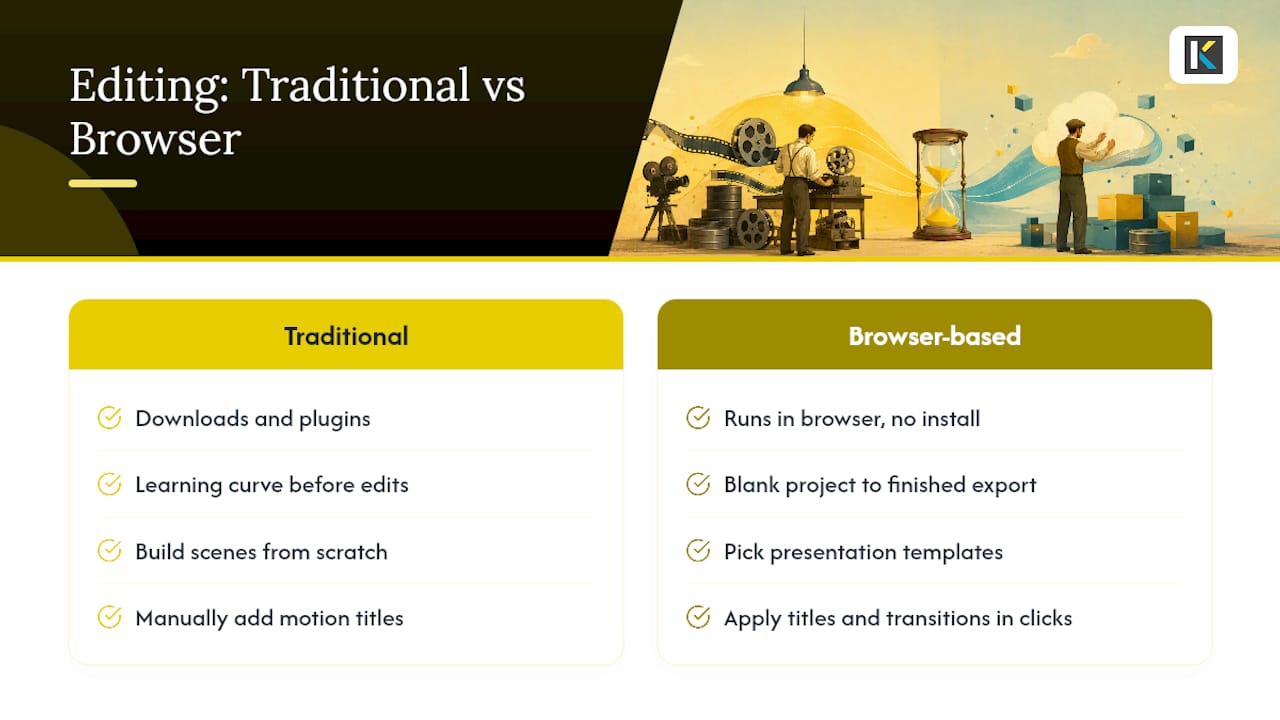
Traditional editing software means downloads, plugins, and a learning curve before you’ve cut a single clip. Some platforms skip all of that: running entirely in the browser, allowing a marketing team to go from blank project to finished export in one sitting instead of losing a day to installation and render times.
The platform simplifies exactly the steps that eat the most time in corporate video work. Pick a presentation video template instead of building scenes from nothing, apply motion titles and transitions in a few clicks through the effects and text library, and drop in your brand colors once so every future video stays consistent. For live meetings, webinars, and conference decks specifically, the presentation-focused editor handles export presets so you’re not guessing at resolution or aspect ratio.
If your current process still involves wrestling with software that was never built for speed, see how a simpler tool changes that, then open a template and start cutting your first scene today.
Sources
Check licensing before use: Pexels for free stock, Envato Elements for paid templates, and review platform privacy policies before uploading corporate footage anywhere.
- Free Business Presentation Videos
- Corporate Presentation Editable Video Templates
- Don’t underestimate the importance of effective onboarding | SHRM
Recommended