

A slideshow video is a timed MP4 built from photos, video clips, music, and simple motion effects. The fastest way to make one: open an online editor like Kudoflix, pick a template, import your photos or clips, set your audio, and export as MP4. No software to install, no steep learning curve.
Here’s what you need to know before you start:
- Format matters first. Decide whether you need a flat video file (MP4) for sharing or an editable file (PPTX) for presenting.
- Templates save the most time. A pre-built animated template handles pacing, transitions, and typography before you add a single photo.
- WebAssembly-powered editors can process media locally in your browser, keeping large raw files on your device rather than uploading everything to a server.
- File formats to have ready: JPG, PNG, or HEIC for photos; MP4 or MOV for clips; MP3 or WAV for audio.
Table of Contents
- When does a slideshow make sense, and which format should you export?
- How do you build a slideshow online in five steps?
- What design choices make a slideshow look professional?
- How should you handle music, voiceover, and media files?
- What export settings should you use for each destination?
- What do free plans cover, and when is a paid plan worth it?
- Key Takeaways
- The workflow that actually works for most people
- Kudoflix makes slideshow creation fast and friction-free
When does a slideshow make sense, and which format should you export?
The format you export should be the first decision you make, not the last. Getting it wrong means re-exporting after the fact.
Common use cases and the right output for each:
- Social media (Instagram Reels, TikTok, YouTube Shorts): Export MP4, 9:16 aspect ratio, 1080×1920 resolution.
- YouTube standard video or website embed: MP4, 16:9, at least 1080p.
- Wedding or event projection on a large screen: MP4 or MOV, 16:9, 1080p minimum; 4K if the projector supports it.
- Business or classroom presentation you’ll edit later: PPTX, so slides stay editable slide-by-slide.
- Short looping graphic for a website or email: GIF or WebM, kept under 10 seconds for file size.
- Square social post (LinkedIn, Facebook feed): MP4, 1:1, 1080×1080.
The core rule: MP4 is flattened and fixed, best for social sharing and fixed-timing playback. PPTX stays editable, which is what you want for collaborative or classroom work. Choosing the wrong one early costs you time.
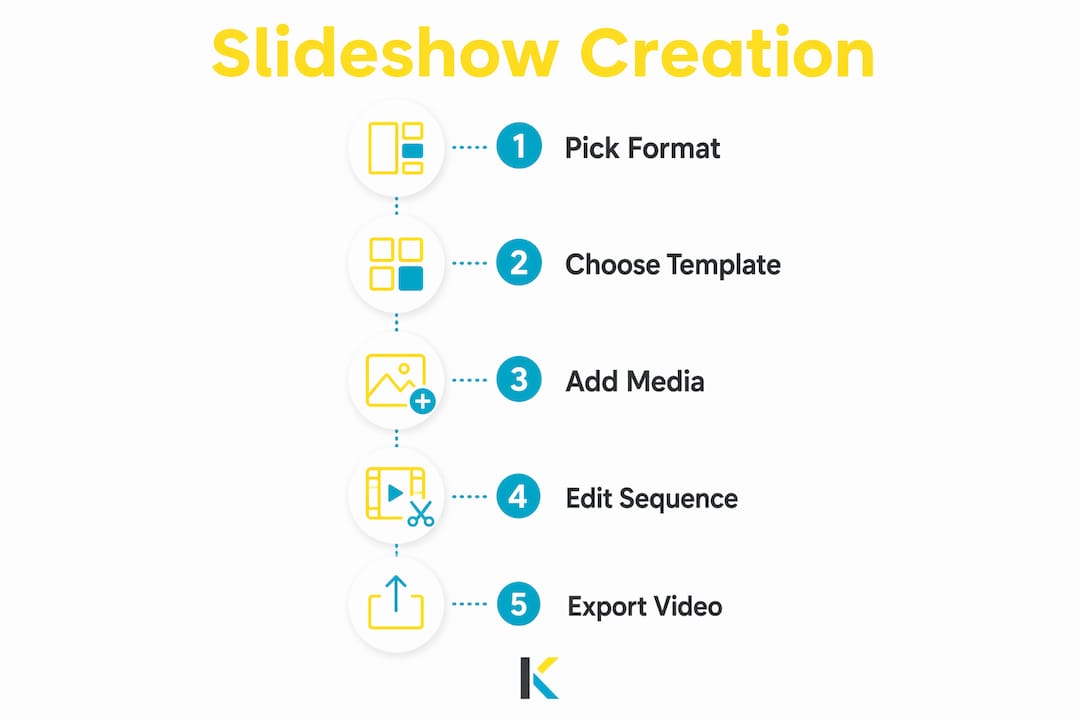
How do you build a slideshow online in five steps?
-
Gather and prep your media. Resize photos to match your target resolution before importing. A 4K export needs source images at 3840×2160 or larger; 1080p works fine with anything above 1920×1080. Convert HEIC files to JPG if your editor doesn’t accept them natively. Aim for 15–30 photos for a 60-second highlight reel at roughly 3–4 seconds per slide.
-
Pick a template and set your aspect ratio. Choose a template that already matches your mood and pacing target. Free templates on Kudoflix cover everything from wedding memories to business pitches, with aspect ratio presets built in. Set the ratio before you arrange anything — changing it later shifts every element.
-
Arrange slides and set per-slide duration. Drop photos into the timeline in the order that tells your story. A social highlight works at 2–3 seconds per slide; a memorial or wedding video feels better at 4–6 seconds. Front-load your strongest image, because viewers decide in the first two seconds whether to keep watching.
-
Add music and optional voiceover. Upload an MP3 or WAV, then use the “fit to audio” option if your editor offers it. This auto-adjusts slide durations so the video ends exactly when the music does. For voiceover, record one short line per slide in a quiet room, holding your phone 6–8 inches from your mouth.
-
Export and test on your target device. Play the exported file on the actual screen where it will be viewed — phone, laptop, or projector. Check that captions are readable, audio syncs correctly, and the file size is manageable for sharing.
Pro Tip: Use a template with auto-fit audio on your first attempt. It eliminates the single most time-consuming part of slideshow creation: manually matching slide timing to the music.
Quick troubleshooting:
- Slow export: Close other browser tabs and reduce export resolution temporarily to test.
- Crash mid-export: Break the project into shorter segments and merge them.
- File too large to share: Drop from 4K to 1080p or reduce the bitrate setting.
What design choices make a slideshow look professional?
Most amateur slideshows fail on two things: inconsistent pacing and cluttered text. Fix those two and the rest follows.
Timing and motion:
- Typical seconds per slide is standard for most social and personal slideshow projects.
- Memorial or tribute videos usually use longer slide durations to allow viewers more time per image.
- Ken Burns effect adds life to still photos; use it on most slides while leaving some static for visual contrast.
- Heavy zoom-in/zoom-out effects and spinning transitions belong in almost no professional context. Save them for kids’ birthday videos.
Text and captions:
- Minimum 36pt font for any text meant to be read on a phone screen.
- White text on a semi-transparent dark overlay is the most reliable legibility combination.
- Keep lines to 5–7 words maximum. If a caption needs more, it belongs in a voiceover, not on screen.
- Place text in the lower third or upper third of the frame, never dead center over a face.
Transitions:
- Pick one transition style and use it throughout. Mixing dissolves, wipes, and flips in the same video reads as unfinished.
- Cross-dissolve is the safest default for almost every context.
- Cut (no transition) works well for fast-paced social content where you want energy.
Pro Tip: If Kudoflix’s template already has a built-in color palette and font set, don’t override it. Template presets exist because someone already solved the contrast and spacing problem for you.

How should you handle music, voiceover, and media files?
Accepted file types for import:
- Photos: JPG, PNG, HEIC (convert HEIC to JPG if needed)
- Video clips: MP4, MOV
- Audio: MP3, WAV, M4A
Crop photos to your target aspect ratio before importing. A portrait photo dropped into a 16:9 timeline will either be letterboxed or cropped automatically, and the automatic crop rarely lands where you want it.
Music licensing basics: Only use music you own outright or royalty-free tracks included with your editor. Uploading a copyrighted song to a public YouTube video or Instagram Reel will get the audio muted or the video removed. Most online editors, including Kudoflix, include a licensed music library. If you want something specific, sites like Pixabay Music offer tracks under free licenses for commercial use.
AI-assisted tools can auto-generate layouts and suggest audio pairings based on your media, cutting the guesswork out of matching mood to music.
Pro Tip: For voiceover, record in a closet or small room with soft furnishings. The fabric absorbs echo. Keep each recorded line under 10 seconds so editing individual slides stays easy.
What export settings should you use for each destination?
Getting export settings right means your video looks sharp where it’s actually watched, not just in the editor preview.
Format by destination:
- MP4: Best for everything — social, YouTube, email, projection. Use H.264 codec for broadest compatibility.
- PPTX: Use only when the file needs to stay editable in PowerPoint or Google Slides.
- GIF: Short loops under 10 seconds; file sizes balloon quickly above that.
- WebM: Lightweight web embeds; not universally supported on older devices.
Resolution and bitrate guidance:
- 720p (1280×720): Acceptable for quick social stories or drafts.
- 1080p (1920×1080): The standard for most YouTube uploads and social feeds.
- 1440p / 4K: Use for large-screen projection or archival quality; file sizes are significantly larger.
- Frame rate: 30fps for most social and web content; 24fps for a cinematic feel in wedding or event videos.
Kudoflix’s social export presets handle aspect ratio and resolution automatically for YouTube, Instagram, and TikTok, so you’re not guessing at numbers.
Pre-share checklist:
- Play the exported file on the target device.
- Confirm captions are embedded and readable.
- Check audio levels (not too quiet, not clipping).
- Name the file descriptively before uploading (e.g.,
wedding-highlight-2026-1080p.mp4).
What do free plans cover, and when is a paid plan worth it?
Free tiers on most online slideshow tools are genuinely useful for personal projects. They become limiting when you need professional output.
Typical free-plan restrictions:
- Watermark on exported video
- Export capped at 720p or lower
- Limited access to premium stock music and photo libraries
- Fewer template options or locked animated templates
- No background removal or advanced masking tools
What paid tiers usually add:
- Watermark-free exports at 1080p or 4K
- Full stock music and photo libraries
- Priority processing for faster exports
- Advanced effects, background removal, and custom branding
When the free plan is enough: Personal slideshows, school projects, quick social posts where a watermark won’t matter, or any project where you’re testing a workflow before committing.
When to upgrade: Client work, anything going on a public YouTube channel, wedding videos, or business presentations where the watermark would undermine credibility. The trade-offs between free and paid tiers follow a consistent pattern across creative tools: resolution and branding are almost always the first things paywalled.
Key Takeaways
A great slideshow video comes down to three decisions made early: the right export format for your destination, consistent pacing, and licensed audio.
| Point | Details |
|---|---|
| Output format first | Choose MP4 for sharing or PPTX for editing before you arrange a single slide. |
| Pacing by context | Use 2–3 seconds per slide for social; 4–6 seconds for memorial or wedding videos. |
| License your music | Only use tracks you own or royalty-free music from your editor’s library to avoid takedowns. |
| Test before sharing | Play the exported file on the actual target device to catch sync, caption, and quality issues. |
| Kudoflix for quick starts | Kudoflix’s free online slideshow editor offers templates, social presets, and fast browser-based export with no installation. |
The workflow that actually works for most people
The conventional advice on slideshow creation focuses on design principles — color theory, font pairing, transition philosophy. That’s useful once you’ve made a few. For a first-time creator, it’s the wrong place to start.
What actually moves the needle is deciding your output destination before you open any editor, then picking a template that already solves the design problem for you. The template isn’t a shortcut; it’s the right tool. Professional designers use presets and systems precisely because starting from a blank canvas every time is inefficient.
The second thing most guides underplay is audio timing. A slideshow where the music ends awkwardly 15 seconds before the video does, or cuts off mid-phrase, feels unfinished regardless of how good the photos are. Auto-fit audio, available in Kudoflix and similar tools, solves this in one click. Use it.
The third overlooked step is the device test. Exporting at 1080p and watching it in the editor preview is not the same as playing it on the phone or projector where your audience will actually see it. Captions that look fine at 100% zoom on a desktop can be unreadable on a phone screen. Export, transfer, watch. That 90-second check catches more problems than an hour of tweaking in the editor.
Browse the Kudoflix video examples if you want a concrete sense of what a polished output looks like before you start your own.
Kudoflix makes slideshow creation fast and friction-free
Most people don’t need complex video software. They need something that works in a browser, starts with a good template, and exports a clean file in under five minutes. That’s exactly what Kudoflix delivers.
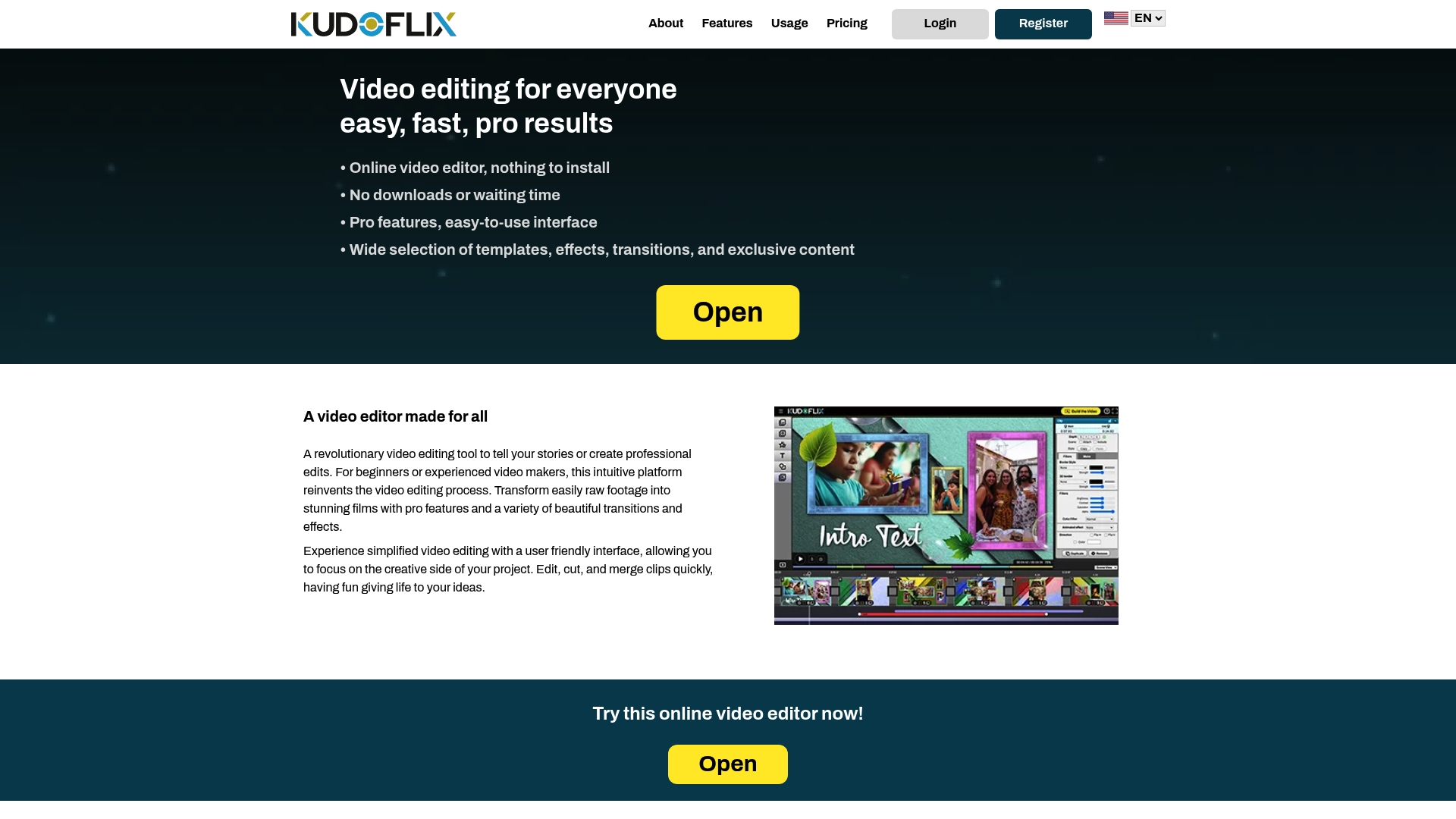
Kudoflix’s online video editor runs entirely in your browser, no download or account setup required to explore. The template library covers social formats, wedding memories, business presentations, and more, with aspect ratio presets built in for YouTube, Instagram, and TikTok. Export at up to 1080p, add licensed music from the built-in library, and share directly from the editor.
What you get with Kudoflix:
- Browser-based editing with fast processing and no installation
- Animated templates with built-in transitions and effects
- Social export presets for YouTube, Instagram, and TikTok
- Licensed music library included
- Step-by-step documentation and real-world examples
Start with a template, import your photos or clips, and run an export test on your target device. That’s the whole workflow. Try the Kudoflix slideshow editor and have a shareable video ready in minutes.
Recommended