A progressive web application is a website enhanced with a web app manifest, served over HTTPS, and usually a service worker, which together make it installable and able to run offline. Build one when you need broad reach across devices without maintaining separate native codebases, and when your core features don’t require deep hardware access. For most content, commerce, and productivity tools, that trade favors the PWA.
TL;DR:
- Serving your site over HTTPS is essential, as service workers and modern APIs will not run securely and can break offline functionality.
- Properly version your cache names and clean up old caches during the activate event to ensure updates reach all users and prevent stale content.
- Installing a PWA requires a valid manifest with at least a name, icons, start URL, and display mode, and multiple browsers have different prompts and support levels.
- Implementing suitable caching strategies like cache-first, network-first, or stale-while-revalidate is key to balancing performance and data freshness during offline use.
- Testing with Lighthouse and monitoring service worker behavior are critical to achieving high installability, performance, and cross-platform reliability.
Table of Contents
- What Makes a Website a Progressive Web Application?
- The Core Technical Components: Manifest, Service Worker, HTTPS, and Storage
- What Does Installability Actually Look Like?
- How Should You Handle Offline Support and Caching?
- How Do You Turn an Existing Web App Into a PWA?
- How Do You Test and Audit a PWA Properly?
- Where Does Browser Support Break Down?
- Where Do PWAs Actually Outperform Native Apps?
- PWA or Native App: How Do You Decide?
- Why a Web-First Video Editor Cares About PWA Features
- What Trips Up Most Teams Building Their First PWA
- Where to Go Deeper on PWA Implementation
- Sources
What Makes a Website a Progressive Web Application?
A progressive web app isn’t a separate platform. It’s a normal website that meets a few baseline technical criteria and then layers on native-like behavior for browsers that support it. That layering is the whole idea: the site works for everyone, and gets better for people whose browsers can do more.
The Wikipedia entry on progressive web apps defines the concept cleanly: a web application built with standard HTML, CSS, and JavaScript that meets baseline criteria, served over HTTPS, packaged with a manifest, and typically backed by a service worker, to deliver an installable, app-like experience with offline support.
Four things make that possible:
- HTTPS is non-negotiable. Service workers and most modern web APIs simply refuse to run in an insecure context.
- The manifest tells the browser how to treat the app. Name, icons, start URL, and display mode all live here.
- The service worker is technically optional for installability on some platforms, but without one you lose real offline functionality, according to Microsoft’s Edge documentation.
- Progressive enhancement governs the whole build. Design the page to work as a plain website first, then add manifest and service worker capability on top, per web.dev’s PWA guidance.
The Core Technical Components: Manifest, Service Worker, HTTPS, and Storage
Three files and one protocol decision do almost all the work in a progressive web app. Get these right and everything else, install prompts, offline caching, background sync, follows naturally.
The web app manifest is a JSON file linked from your HTML <head>. Chromium browsers require specific fields before they’ll offer an install prompt: name or short_name, start_url, display, and an icons array that includes at least a 192px and 512px image, according to MDN’s PWA documentation. Add a maskable icon variant so your logo doesn’t get clipped inside Android’s adaptive icon shapes.
The service worker is a JavaScript file that runs separately from your page, intercepting network requests and managing cache. It moves through a defined lifecycle: install, then waiting, then activate, then it starts controlling pages. Get the activate step wrong and users end up stuck on stale, cached versions of your app for weeks.
For storage, you have three real options:
- Cache Storage for request and response pairs, mainly static assets and API responses.
- IndexedDB for structured data that needs querying, like drafts or offline edit history.
- Storage Manager API to check quota and request persistent storage so the browser doesn’t evict your cache under pressure.
Pro Tip: Tag your cache names with a version string (e.g., app-shell-v3) and delete any cache that doesn’t match the current version inside your service worker’s activate event. Skip this and you’ll ship a fix that half your users never actually receive, as MDN notes in its lifecycle guidance.
What Does Installability Actually Look Like?
Installability is where a PWA starts feeling like a native app instead of a browser tab. Chromium browsers (Chrome, Edge, Samsung Internet) will surface an install prompt automatically once your manifest and service worker meet the criteria. Safari on iOS handles this differently: users add the site to their home screen manually through the share sheet, and support for background features stays more limited.
Once installed, several UX pieces kick in:
- Display mode (
standaloneorfullscreen) strips out the browser chrome so the app looks native. - Splash screens get generated automatically from your manifest’s background color and icon while the app loads.
- App shortcuts let users long press your icon for quick actions, like “New Project” or “Recent Files.”
- Custom install prompts let you delay or style the browser’s default prompt, but you should still respect a user’s dismissal and not nag them repeatedly.
On desktop, Microsoft Learn documents that installed PWAs on Windows can launch on sign-in, associate with file types, and run in standalone windows, putting them close to parity with native desktop software for many productivity scenarios. Accessibility still matters here: standalone mode removes the browser’s back button and address bar, so your in-app navigation needs to compensate with clear focus states and keyboard support.
How Should You Handle Offline Support and Caching?
Three caching strategies cover almost every real scenario:
- Cache-first: serve from cache immediately, fall back to network only if nothing’s cached. Best for fonts, icons, and app shell assets that rarely change.
- Network-first: try the network, fall back to cache on failure. Best for content that needs to stay fresh, like a feed or dashboard.
- Stale-while-revalidate: serve the cached version instantly, then fetch a fresh copy in the background to update the cache for next time. Best for balancing speed and freshness on things like thumbnails.
Beyond picking a strategy, design an actual offline fallback page instead of letting the browser show its own dinosaur or broken-page error. Background Sync lets you queue actions (like a form submission or an upload) so they fire once connectivity returns, and Push Notifications can re-engage users, but both should be opt-in and used sparingly. Nobody installs an app to get spammed.
Pro Tip: Version your cache names on every deploy and clean up old caches in the activate event. This single habit prevents the most common PWA support ticket: “the app looks broken after your update.”
How Do You Turn an Existing Web App Into a PWA?
Converting an existing site follows a fairly linear path, and a practical guide from Resourcifi lays out the core sequence well:
- Serve everything over HTTPS. No exceptions, and no mixed content warnings left unresolved.
- Write the manifest.json with name, icons (192px and 512px minimum, plus a maskable variant),
start_url, anddisplay: standalone. - Link the manifest from your HTML
<head>and add the appropriate meta tags for iOS home screen support. - Register a service worker and cache your app shell (the HTML, CSS, and JS needed to render the basic UI without network access).
- Choose a caching strategy per resource type. Don’t cache-first everything; that’s how users end up staring at week-old content.
- Run Lighthouse and fix every installability and performance audit it flags.
- Introduce Workbox to handle routing and caching logic instead of hand-rolling fetch event listeners for every route.
- Layer in advanced features gradually, push notifications, background sync, and add automated checks to your CI pipeline so a broken service worker never reaches production silently.
Each step builds on the last. Skipping the manifest and jumping straight to service worker registration is a common mistake, and it just leaves you with offline caching and no install prompt.
How Do You Test and Audit a PWA Properly?
Lighthouse is the standard tool here, built into Chrome DevTools and runnable from the command line or CI. It audits installability, performance, and accessibility in one pass, and each failure comes with a specific fix, not just a vague score.
- Run Lighthouse locally and in CI so a regression gets caught before it ships, not after a user complains.
- Use Workbox to handle common service worker patterns instead of writing custom fetch handlers, which is where most subtle bugs creep in, according to web.dev’s PWA curriculum.
- Open the Application panel in Chrome DevTools to inspect service worker state, force update cycles, and clear storage during development.
- Monitor runtime errors in production, since a service worker bug that only shows up on flaky connections rarely surfaces in local testing.
Where Does Browser Support Break Down?
Chromium browsers lead on PWA capability: full install support, Background Sync, and reliable Push Notifications. Safari on iOS lags behind. Home screen installation works, but Background Sync and several storage guarantees remain inconsistent, and push notification support arrived much later and with narrower behavior than on Android or desktop.
- Feature-detect everything. Check for
serviceWorkerinnavigatorandPushManagersupport before calling either. - Don’t assume Push Notifications will reach iOS users the same way they reach Android or desktop Chrome users.
- Build your core experience to work without any of this, then enhance where the browser allows it.
- Track platform changes through MDN and web.dev, since Safari’s PWA capabilities have shifted meaningfully release to release.
Where Do PWAs Actually Outperform Native Apps?
Category patterns show up clearly once you look past individual products:
- Editors and productivity tools benefit heavily from installability plus offline caching, since users return to the same project repeatedly and expect it to open instantly.
- Commerce and content sites have reported measurable engagement gains after adding installability and offline browsing, largely because return visits no longer depend on a full page reload.
- Apps needing deep sensor access, high-end graphics, or background processing beyond what service workers allow still lean native. Think AR, complex gaming, or continuous background location tracking.
- Hybrid strategies exist too. Some teams ship a PWA and later wrap it for app store distribution, as Adjust notes in its native vs. PWA comparison, depending on discovery needs.
PWA or Native App: How Do You Decide?
The decision comes down to four axes: reach, device capability needs, cost, and time-to-market.
- Choose a PWA when you want one codebase across every platform, faster iteration, and don’t need deep hardware integration.
- Choose native when your app depends on advanced camera control, background location, or performance-critical graphics.
- Consider a mixed strategy: ship the PWA first, validate demand, then build native later if platform-specific features become a real requirement.
- Factor in maintenance, too. A single PWA codebase is cheaper to keep running than parallel iOS and Android native apps, but you give up some platform-native polish in exchange.
Accessibility deserves a line here as well: standalone display mode changes navigation patterns, so pair any PWA build with solid accessibility fundamentals, since that groundwork tends to lift both usability and search visibility together.
Why a Web-First Video Editor Cares About PWA Features
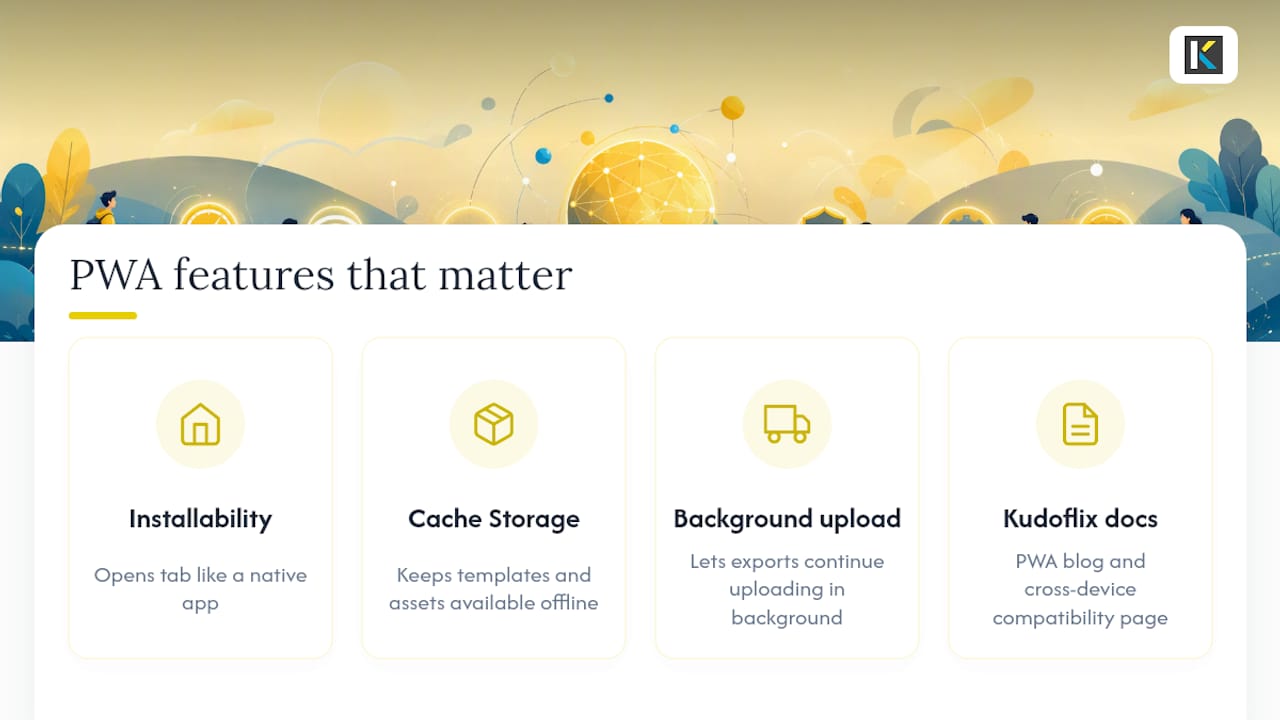
Some browser-based video editors rely on progressive web application features that map directly onto media editing workflows. Installability turns a browser tab into something that opens like a real application. Cache Storage keeps templates and assets available between sessions, and background upload patterns let exports keep processing without blocking the interface. For a closer look at how Kudoflix approaches this, its PWA-focused blog post walks through the reasoning, and its cross-device compatibility page covers how editing carries over between phone and desktop.
What Trips Up Most Teams Building Their First PWA
Overcaching is the mistake I see most often: teams cache everything cache-first, then wonder why users see outdated content for weeks after a deploy. Fix your cache invalidation strategy before you ship, not after. Run Lighthouse early in development, not right before launch, and keep your manifest and icon files in source control with CI checks so a missing icon never silently breaks an install prompt.
— Mandrixx
Where to Go Deeper on PWA Implementation
For conceptual grounding and hands-on examples, MDN’s Progressive Web Apps docs and web.dev’s PWA learning path cover most scenarios. For desktop-specific integration details, check Microsoft Learn’s PWA overview. Lighthouse and Workbox documentation round out the testing and implementation side.
Ready to see what a browser-based editor built around these same principles can do for your video projects? Explore what’s possible with Kudoflix’s video editor, or jump straight into the online editor itself and start creating without a single download.
Sources
Recommended