

The fastest way to make a year in review video is a templates-first workflow: gather your best photos and clips, drop them into a ready-made template, add music and text, then export for the platform you’re using. A 30 to 90 second social clip takes most people under an hour this way. A longer 3 to 5 minute keepsake video runs closer to two hours. Kudoflix handles this entire process in a browser, with no downloads required.
TL;DR:
- Using templates for short videos under 90 seconds can significantly cut editing time, often taking less than an hour with proper preparation.
- Choosing the correct aspect ratio and template style upfront ensures efficient pacing, strong visuals, and the inclusion of essential features like captions and logos.
- Gathering and culling your best clips within 15 to 20 minutes, prioritizing emotion and movement over technical perfection, streamlines the editing process.
- Proper sound handling involves using royalty-free or platform-licensed music, adjusting levels carefully, and confirming licensing rights before publishing.
- Exporting with standard settings such as 1080p resolution in MP4 format, matching the platform’s aspect ratio, and including burned-in captions ensures wide compatibility and optimal viewing experience.
Table of Contents
- What You Need Before Starting Your Year in Review Video
- Choosing a Format and Template for Your Recap
- Building Your Recap Video Step by Step
- Picking Music and Handling Sound Without a Takedown
- Export Settings That Actually Work on Every Platform
- Making a Team or Company Year in Review That People Actually Watch
- Privacy and Permission Basics Before You Publish
- Kudoflix: A Templates-First Way to Finish Your Recap Fast
- What Makes a Year in Review Actually Worth Watching
- Watch These Recaps for Pacing Ideas
- Sources
- FAQ
What You Need Before Starting Your Year in Review Video
Grab these before you open any editor:
- Photos and short clips — aim for dozens of raw pieces to choose from, more if you’re covering a whole team’s year.
- Dates or rough chronology — even a mental timeline helps you order moments logically.
- Captions or context notes — a line per moment so you’re not scrambling for words mid-edit.
- Logos or brand assets — only if this is a company or club recap.
- A target length — decide now if this is a 30 second Instagram Story or a 5 minute keepsake.
Budget a short amount of time just for gathering and culling before you touch a template. Cut ruthlessly: brief strong clips beat longer mediocre ones. If a clip makes you pause and smile, keep it. If you have to think about why it matters, drop it.
Choosing a Format and Template for Your Recap
Aspect ratio decisions save more editing time than almost anything else you’ll do. Vertical 9:16 works for Instagram Reels, TikTok, and YouTube Shorts. Square 1:1 still performs on Facebook feeds. Horizontal 16:9 remains the standard for YouTube uploads and any recap you’re projecting at an office party or family gathering.
Template themes worth considering:
- A highlight-reel montage for personal or family recaps, heavy on quick cuts and music.
- A milestone timeline template for teams, ordering the year by quarter or major launch.
- A “best nine” or “top moments” grid style, popular for social recap posts.
- A narrated slideshow template for slower, more sentimental keepsakes.
A good template does more than look nice. It pre-sets pacing (how long each clip holds before the cut), leaves placeholder slots so you’re not fighting blank space, and often includes matching transitions so nothing feels mismatched. Templates cut editing time by more than half for standard recap formats compared to building pacing and transitions from scratch, according to tool publisher Animoto.
Before picking one, check that it supports captions, has room for a logo if needed, and its built-in transitions match your desired tone. A bouncy transition style clashes with a somber retrospective. Kudoflix’s free templates are organized by theme, which shortens this decision considerably.
Pro Tip: Pick your template before you finish culling photos. Knowing the slot count and pacing tells you exactly how many clips you actually need, which stops you from over-collecting.
Building Your Recap Video Step by Step
Here’s the actual build, broken into timed stages so you know where you stand.

1. Collect and cull (15 to 20 minutes). Pull your strongest 20 to 30 assets for a short social clip, or 40 to 60 for a longer keepsake. Favor movement and emotion over technically perfect shots. A slightly blurry photo of someone laughing beats a sharp photo of someone standing still.
2. Import into your template (5 minutes). Match your chosen aspect ratio before dropping in assets, not after. Reformatting later means re-timing every transition.
3. Assemble and pace (15 to 25 minutes). This is where most of your editing time goes. For social platforms, keep average clip lengths around 1 to 4 seconds with a total runtime under 90 seconds to hold viewer attention through the end. Longer keepsake videos can hold clips for 3 to 6 seconds each since the audience has already chosen to sit and watch. Twitch’s annual Recap montage is a useful pacing reference. It strings together roughly two dozen top moments without ever lingering too long on one.
Order matters as much as length. Open strong, put your second best moment near the end, and let the weaker filler clips sit in the middle where attention naturally dips.
4. Add titles, captions, and music (10 to 15 minutes). Titles should mark chapters (“Spring,” “The Launch,” “Team Trip”) rather than describe every clip. Burned-in captions help on mute-first platforms like Instagram and TikTok.
5. Polish with color and filters (5 minutes). A single consistent filter across the whole video looks far more intentional than leaving each clip in its original color grade. Kudoflix’s color filters and effects apply in a couple of clicks across a whole timeline.
6. Export and quality check (5 minutes). Watch the full video once, on mute, to check pacing. Then watch it again with sound to check the mix.
Pro Tip: Do your final QA pass on your phone screen, not your desktop monitor. Text that reads fine at 27 inches sometimes disappears at phone size, and that’s how most people will actually watch your recap.
Picking Music and Handling Sound Without a Takedown
Music is where most recap videos run into trouble, usually after they’re already published. Three practical routes:
- Royalty-free libraries (built into most editors) — cleared for use once you’ve licensed the platform, lowest risk.
- Platform-licensed tracks (Instagram, TikTok’s built-in libraries) — free to use on that platform only, and they often won’t carry over if you export and repost elsewhere.
- Original or personally recorded music — safest legally, but takes more effort to produce.
“Royalty-free” doesn’t mean “use anywhere forever.” It usually means no per-play fee once you’ve licensed it, but the license still has scope. Read the terms for commercial use if this is a company recap.
For mixing, three habits fix most amateur audio problems: duck the music under any voiceover or dialogue, fade in and out over the first and last second rather than cutting hard, and normalize levels so quiet clips don’t suddenly blast louder ones. Run one more check before publishing: platforms with automated content matching flag mismatched licensing fast, so confirm your track’s usage rights match the platform you’re posting to.
Export Settings That Actually Work on Every Platform
Get these settings right and you avoid the blurry, cropped, or silent-caption disasters that plague rushed exports:
- Resolution and codec: 1080p minimum, H.264 MP4 for near-universal compatibility.
- Aspect ratio: 9:16 for Reels, TikTok, and Shorts; 16:9 for YouTube and internal presentations; 1:1 for Facebook feed posts.
- Duration: under 90 seconds for social feeds, up to 8 minutes for a full editorial-style recap along the lines of a network year-in-review segment.
- Captions: burn them in for social feeds where sound defaults to off; attach an SRT file for YouTube or internal platforms where viewers can toggle them.
- Thumbnail: pick your strongest single frame manually rather than trusting an auto-generated one.
Check each platform’s own upload page before publishing since aspect ratio and length limits shift periodically.
Making a Team or Company Year in Review That People Actually Watch
Corporate recaps fail for one predictable reason: too many metrics, not enough moments. A slide of quarterly numbers doesn’t move anyone emotionally, but a clip of the team celebrating a launch does. Balancing hard numbers with human moments increases morale and shareability compared to a metrics-only recap, based on patterns seen in narrative-driven local news coverage.
Practical checklist for a company recap:
- Get brand assets and logo files approved before editing starts, not after.
- Route the final cut through whoever handles PR or communications, especially if it’ll be shared externally.
- Plan two deliverables: one 3 to 4 minute version for the all-hands meeting, and 30 to 60 second cutdowns for internal Slack or social channels.
- Flag any slide containing unreleased figures or unannounced plans before it reaches a wider audience.
Pro Tip: Ask each department for their single best moment, not their best five. You’ll get better material faster, and it forces people to actually pick their favorite instead of dumping a folder on you.
Kudoflix’s corporate video guidance covers deliverable planning for teams in more depth if you’re managing multiple departments.
Privacy and Permission Basics Before You Publish
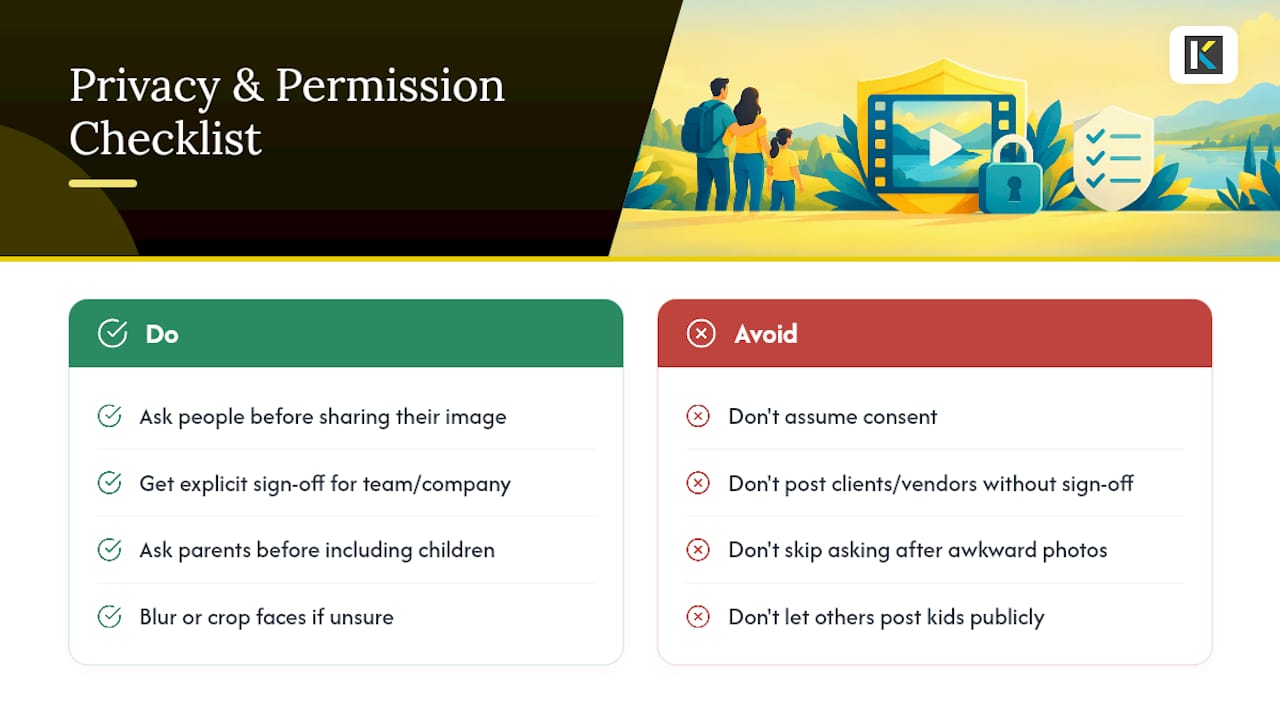
Anyone recognizable in your footage deserves a heads up before their face ends up in a video shared beyond your immediate circle. This matters more than people assume, especially for team recaps that might get posted publicly or family recaps sent to extended relatives.
For personal and family videos, a quick text or verbal check works fine: “Hey, putting together our year, okay if I include the photo from the reunion?” Most people say yes instantly, but skipping the ask can create awkwardness later, especially with photos from a bad hair day or an embarrassing moment.
For team and company recaps, the standard is higher. If someone left the company mid-year, confirm whether HR wants them included at all. If a client or outside vendor appears in footage, get explicit sign-off before anything goes external, particularly for videos headed to social media or a public website. Kids in family footage need extra care too. Even well-meaning grandparents sharing a recap video publicly can put a child’s image somewhere the parents never intended.
A simple rule covers most cases: if you’d hesitate to ask the person directly, that’s a sign to either cut the clip or get explicit permission first. Blur a face or crop a shot rather than skip the moment entirely when the clip itself is too good to lose but the subject’s inclusion is uncertain.
Kudoflix: A Templates-First Way to Finish Your Recap Fast
Every step in this guide maps directly onto features built into Kudoflix. No downloads means you start editing the moment you open the online video editor instead of waiting through an installer. The template library covers the highlight-reel, milestone-timeline, and slideshow styles this guide walks through, with pacing and placeholders already built in. Transitions, text overlays, and color filters sit a couple of clicks away in the effects and transitions panel, so the polish stage takes minutes instead of hours.
Families building a keepsake, clubs recapping a season, educators wrapping up a school year, and small teams assembling a company recap all use the same core workflow, just with different templates. If complicated software has stopped you from finishing a recap video in past years, Kudoflix was built to remove that exact friction. The free plan lets you build and export a first video with no cost, and the STARTER plan at $9.99 per month unlocks the full template and effects library if you want more control. Start your recap now on the Kudoflix online editor and have a finished draft before your coffee gets cold.
What Makes a Year in Review Actually Worth Watching
Many recap videos fall short because they try to include everything instead of committing to a feeling. Pick one emotional note (pride, nostalgia, momentum) and let every clip choice serve that note. A recap that opens strong, dips through quieter connective moments, then closes on your best material holds attention far better than one that front-loads all its energy and fades out. For a company recap, that might mean opening on a big win and closing on a quiet, human thank-you to the team rather than another chart.
— Mandrixx
Watch These Recaps for Pacing Ideas
Three worth studying before you edit: Twitch’s Recap 2025 for fast montage pacing, Britannica’s 2025 Year in Review for tight editorial cuts, and NBC’s 2025 recap for scaling a longer narrative without losing momentum.
Sources
- Twitch Recap 2025 – Twitch
- Video of Britannica’s 2025 Year in Review | Britannica
- Year in Review 2025: Trump tariffs, Charlie Kirk, Pope Leo XIV, Rob Reiner, ‘Wicked: For Good’ and more
FAQ
How Do I Watch My YouTube Year in Review?
YouTube doesn’t generate an automatic personal recap the way some platforms do, so your own year in review video comes from building one yourself with your channel’s footage and photos. Import your best clips from the year into a template, following the same collect, assemble, and export workflow covered above.
How Do I Make a Year in Review Video on Facebook?
Build your recap in an editor at 1:1 or 16:9 aspect ratio, since Facebook feeds support both, then export as an H.264 MP4 file before uploading directly to your page or profile. Keep it under 90 seconds for feed posts to hold viewer attention on Facebook’s default autoplay.
How Many Views Does a YouTube Video Need to Earn $100?
Earnings vary widely by niche, audience location, and ad rates, so there’s no fixed view count that guarantees a specific amount. It generally takes many monetized views, which is why most personal year-in-review videos are made for sharing and sentiment rather than ad revenue.
Can AI Create a Recap Video for Me?
AI tools can help select highlights or suggest pacing, but the strongest recaps still come from a person choosing which moments actually matter emotionally. A templates-first editor like Kudoflix gets you most of the speed benefit people want from AI, while keeping you in control of which moments make the final cut.
What Does Kudoflix Cost to Make a Year in Review Video?
Kudoflix offers a FREE plan at no cost, plus a STARTER plan at $9.99 per month or $83.88 per year, and a PRO plan at $12.99 per month or $119.88 per year for expanded template and effects access. All plans run in the browser with no software installation required.
Recommended